Search an automation's runs
A schedule that runs every hour, or an event automation that hears from a busy sender, soon has hundreds of runs. When you need the ones that hit a particular error, skipped for a particular reason or touched a particular project, search the Runs tab instead of scrolling it. The search reads each run's full details, not only the line the list shows, so a run can match on words its row cuts off.
Who can do this: Org Owners and Admins open automations from Audit. Members open a project's schedules from the project's Schedules tab: see See and add a project's automations.
-
In the sidebar, select Audit, then the Automations tab, and select the automation's name. Its page opens beside the list.
-
Select the Runs tab. Runs are listed newest first, with Status and Search above them.
-
In Search, type a word or a few words from what you're looking for, such as
skipped,error, a project's name or a sender's address. It ignores capitals, and the list narrows as you type.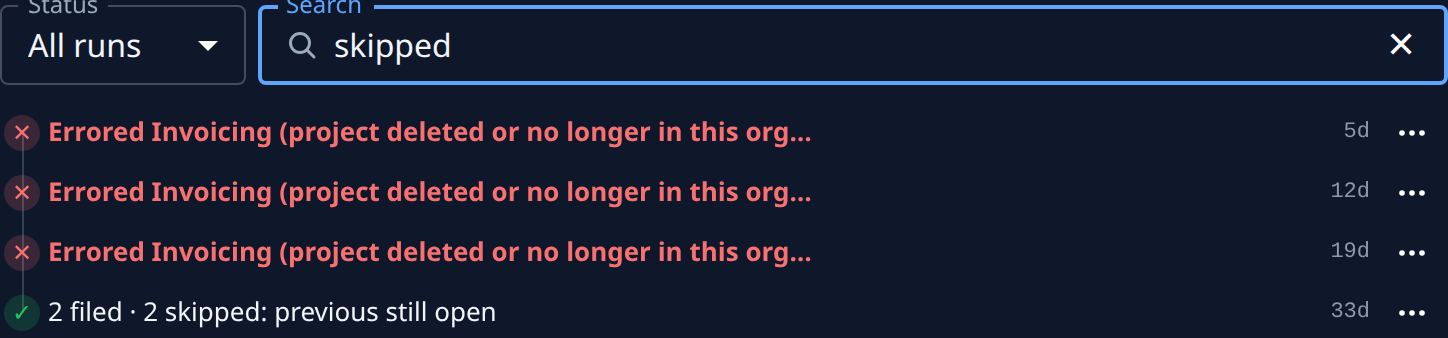
-
To narrow further, set Status as well: Hide skips leaves out runs that only skipped, and Did work keeps only runs that filed or acted. All runs clears it.
-
Select Load more at the foot of the list to search further back in time.
-
Select a run, or Open in its ⋯ menu, to read its details and its targets.
-
To see every run again, clear Search. No runs match means nothing in the runs Jaah still keeps contains your words; try a shorter one.
How far back you can search depends on how many runs the automation keeps: see Keep fewer run logs for a schedule.
Related
- Find out why an automation failed: from a failing automation to the run and target that failed.
- Find the automation that filed a task: go the other way, from a task to its automation.
- How automations work: runs, skips and targets.