Review an automation's tasks before they start
An automation starts each task it files straight away. That suits a nightly report, but not an event automation that may file noise, or a new schedule you don't trust yet. Set its Start to Leave as draft and each task waits on the Tasks page until someone reads it and starts it, or deletes it.
Who can do this: Changing the automation requires the org admin role. Anyone who can start or delete a task can act on the drafts.
-
In the sidebar, select Audit, then the Automations tab, and open the automation.
-
Open the Settings tab.
-
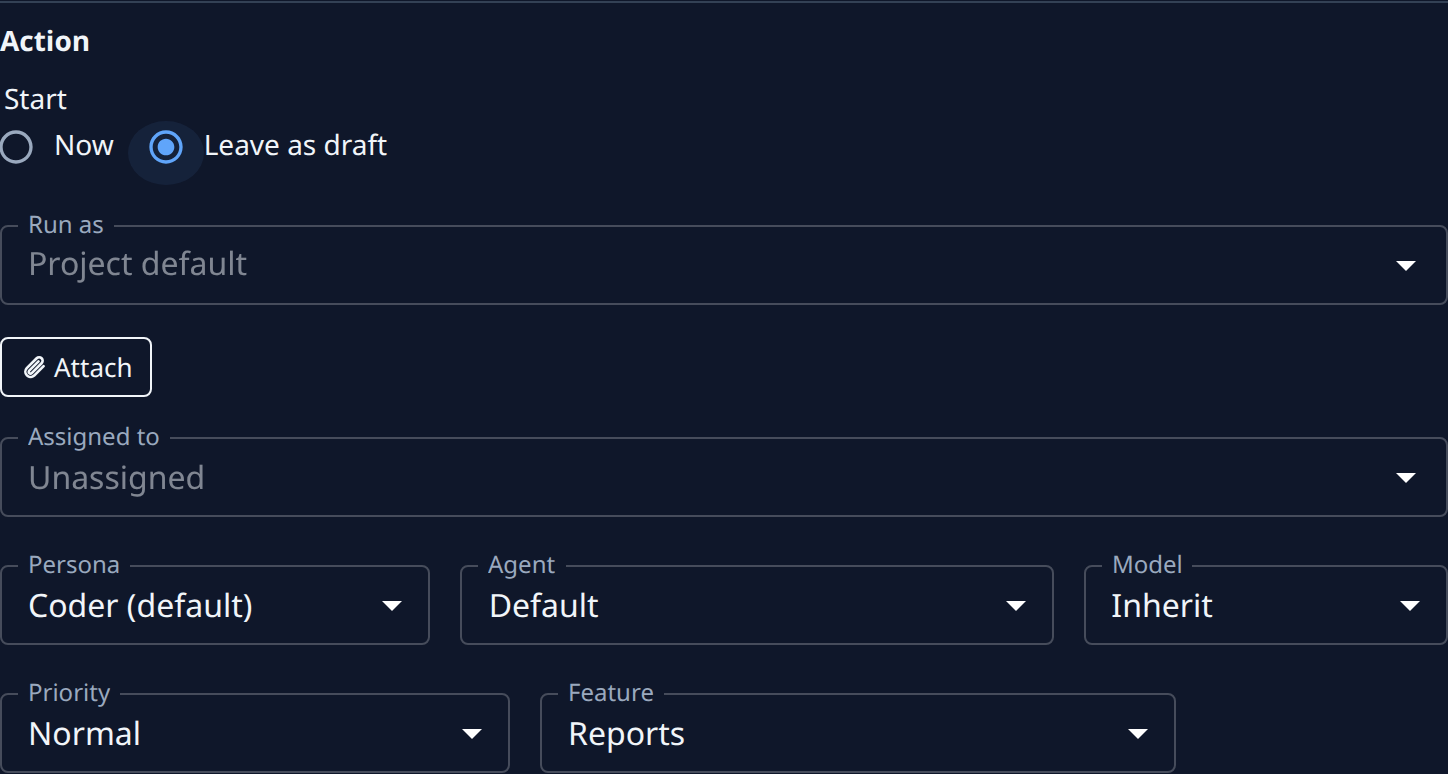
Under Action, set Start to Leave as draft. Now, the default, starts each task as it is filed.
-
Select Save at the bottom of the page.
-
When the automation next runs, select Tasks in the sidebar. Its tasks wait in the Draft section, folded under the Automatic row at the section's end. Select ▸ on Automatic to list them.
-
Select a draft's title to open it and read what it asks for. Change its description, persona or model now if it needs it.
-
To run it, select ▶, its status icon, on the board, or Start on the task. It joins Queued like any started task.
-
To drop a draft instead, tick it on the board and select Delete 1 in the bar under the list, then confirm. Tick several to delete them together.
Once you trust what the automation files, set Start back to Now and select Save. Tasks it filed as drafts before then stay drafts.
Related
- Open the tasks automations filed: the Automatic row on the Tasks page, and what never folds under it.
- Limit what an event automation files: cap how many tasks an event automation files, rather than checking each one.
- Find the automation that filed a task: trace a draft back to the automation and run behind it.
- Run a template on a schedule: the same Start choice on an automation that files from a template.