Read an automation's test event as text or raw
Test shows the title and body an event automation would file for a sample event, without filing anything. The body opens rendered, the way a task page shows it. Show raw shows the text the task would store, so you can see a stray line break, a placeholder that came out empty, or markdown that did not render.
Who can do this: Owners and Admins of your organization. Only event automations have Test, and not one that only records events; a schedule has no Advanced tab.
-
Select Audit in the sidebar, then the automation's row on the Automations tab.
-
Open its Advanced tab. Test comes first.
-
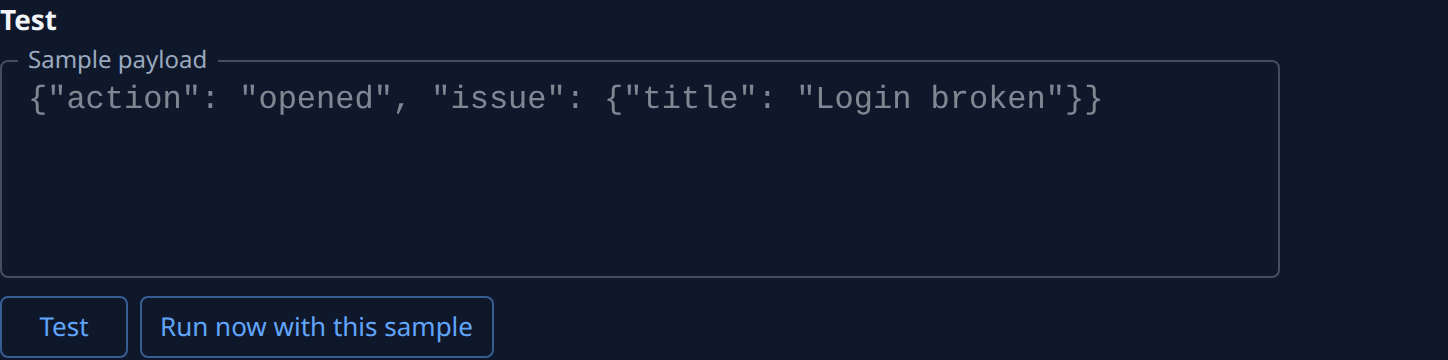
In Sample payload, paste an event as JSON, such as one copied from the sender's delivery log. Left empty, the test runs on an empty event. Text that is not JSON shows Not valid JSON and the reason.
-
Select Test, not Run now with this sample. Test only renders. Run now with this sample files a real task.
-
Read the result below the buttons: Title, then Body, then either Every placeholder had a value. or Missing paths: and the paths the sample lacked. A title left blank in the template reads Taken from the body.
-
Select Show raw beside Body to see the body as plain text, line by line. Select Show rendered to go back.
-
To change the result, edit the templates on the Setup tab and select Test again. It uses your unsaved edits, so you can check a change before you save it.
A clean test shows only that the templates fit your sample. If real events still file nothing, see Check which secret a sender signs with and Fix a tracker webhook that isn't working.
Related
- Create an automation: set up an event automation and connect its source.
- Check which secret a sender signs with: match the secret a sender uses.
- Fix a tracker webhook that isn't working: when real events don't arrive.