Fill in secrets with no value stored
A secret can be saved with no token or key in it, for example when a sign-in to the service never finished. A task that uses it can't sign in. The Values filter on the Secrets list finds every secret in that state, so you can fill each one in or remove it.
Some types of secret have no secret field at all, only plain settings such as an address. Those show as Not stored too and need nothing.
Who can do this: everyone, for the secrets they can see. Filling a secret in needs permission to edit it, and deleting one needs permission to delete it.
Find and fill them
-
In the sidebar, select Directory, then the Secrets tab.
-
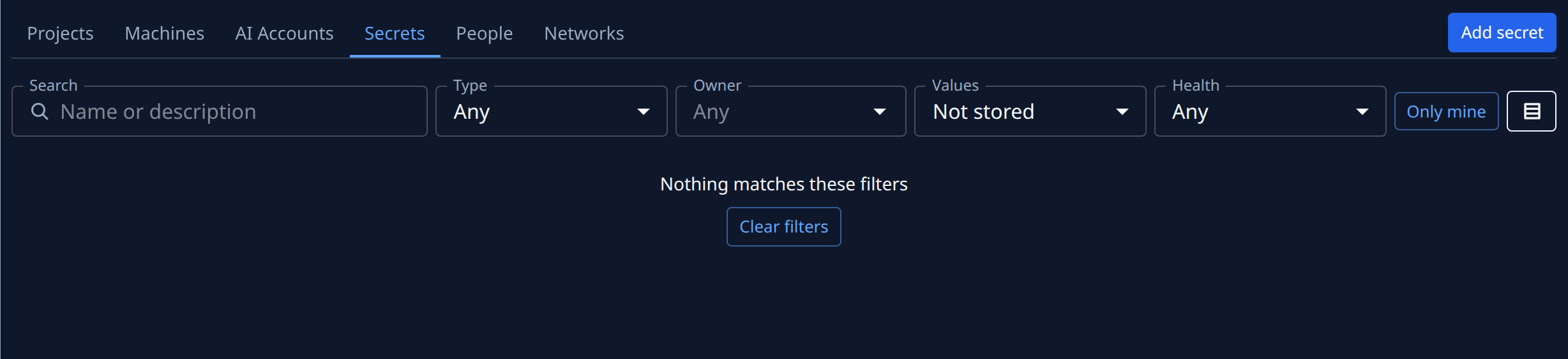
Open Values above the list and pick Not stored.
-
Narrow it if the list is long: pick a Type, or select Only mine for the secrets you created. Each row shows a hollow round mark before its name. Hover it to read no stored secret.
-
Select a secret's name to open it on its Details tab.
-
Put the value in:
- For a token or key, type it into its field. See Check a secret's value before you save it to reveal what you typed with Show.
- For a service you sign in to, select the button named for the service, such as Connect Figma, and finish the sign-in. See Connect a service in one click.
-
Select Save. A secret you connected is saved for you when the sign-in ends.
-
Back in the list, the secret drops out of Not stored. Repeat from step 4 for the next one.
If nothing is left, the list says Nothing matches these filters. Select Clear filters to see every secret again. The list keeps your filters the next time you open it in the same browser.
Delete the ones nobody needs
A secret no one will fill in is better removed, so tasks don't pick it by name. Select ⋯ on its row, then Delete. To remove several at once, see Delete many secrets at once.
Related
- Find secrets that need attention: expired, expiring and unused secrets.
- Replace or delete a secret: put a new value into a secret that has one.
- How secrets work: who owns a secret and how tasks receive it.