Connect an API that has no card
Some services have no card in the gallery. When a task still needs to call one, store its key as a Generic API key. You tell Jaah where the API lives and how it reads the key, and agents send the key the same way on every call.
Use a service's own card when it has one: the card already knows the address and how the key is sent. If your whole team uses the same unlisted API, an Org Owner or Admin can define it once as a custom connector instead; see Add a custom API or MCP server.
Who can do this: everyone. The key you add is yours unless an Org Owner or Admin picks another Owner.
Before you start, have the key and the service's own documentation open. It says which header carries the
key, such as Authorization or X-API-Key, and whether a word such as Bearer goes before it.
Add the key
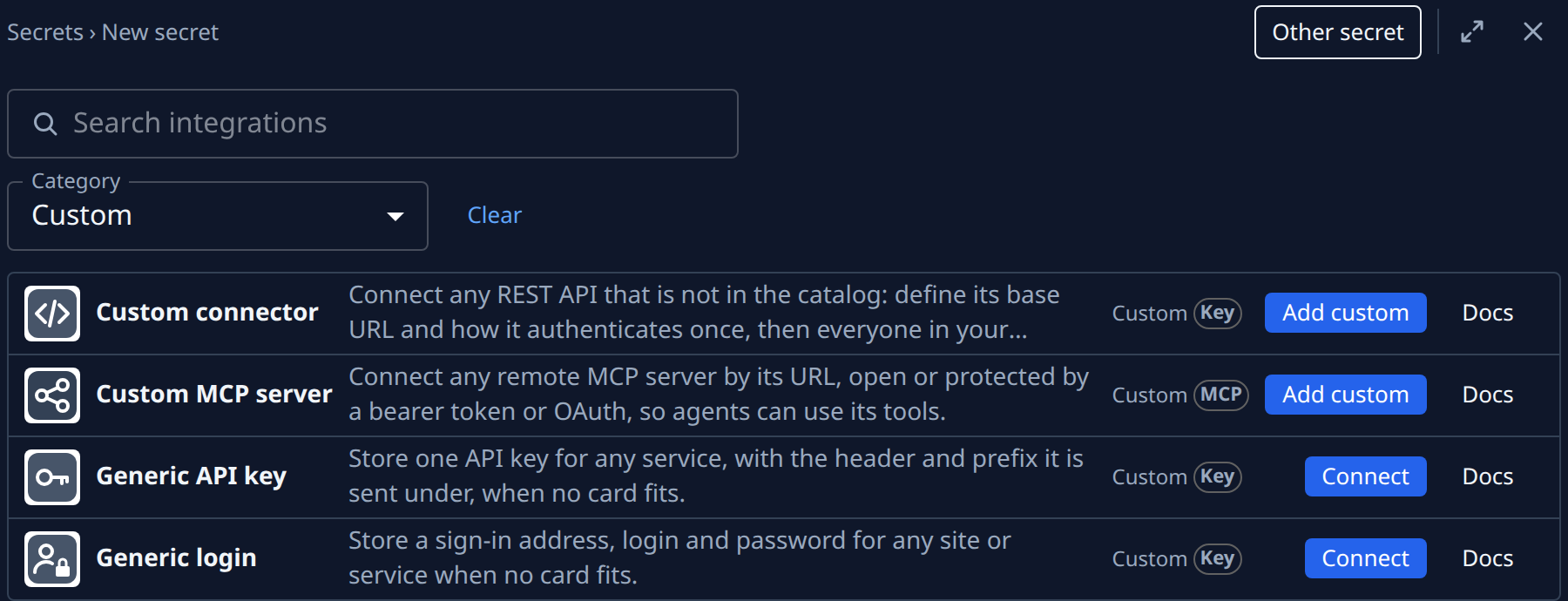
- In the sidebar, select Directory, then the Secrets tab.
- Select Add secret. In Category, pick Custom, or type
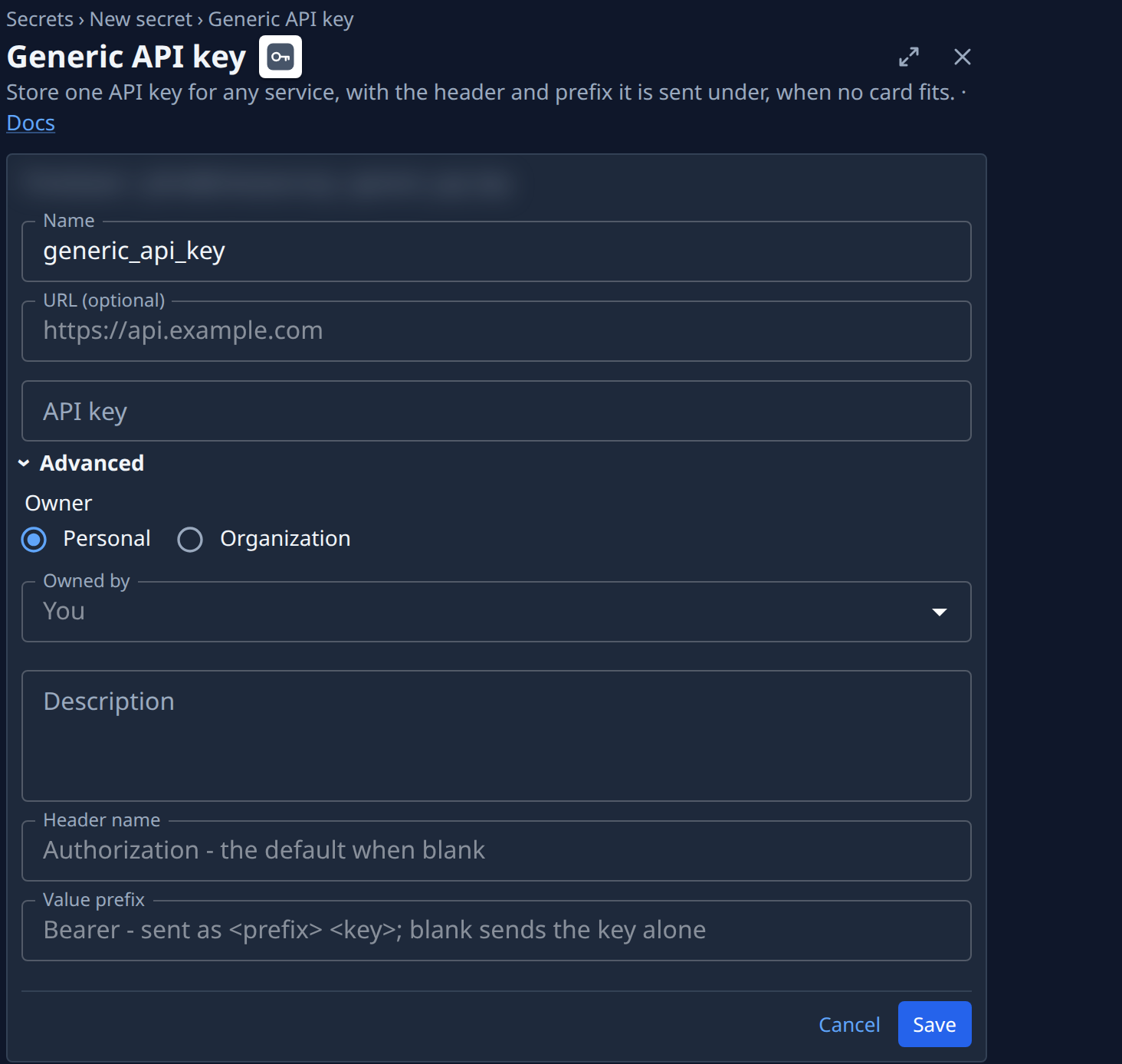
genericin Search integrations. - Select Connect on the Generic API key card. The form opens with its Name, URL and API key.
- Change the Name from
generic_api_keyto one that says what the key is for, such asbilling-api. Tasks find the secret by this name, so keep it short. - In URL (optional), enter the service's root address, for example
https://api.example.com/v1. Leave it blank only for a key that names no host, such as one a Jaah feature reads directly. - Paste the key into API key, on its own. Leave out any word such as
Bearer: that goes in the next step. - Open Advanced and set how the key is sent:
- Header name: the header the API reads the key from, spelled as its documentation spells it.
Leave it blank to send the key in
Authorization. - Value prefix: the word sent before the key, such as
BearerorToken. Leave it blank to send the key alone.
- Header name: the header the API reads the key from, spelled as its documentation spells it.
Leave it blank to send the key in
- Optional: add a Description under Advanced, such as which account or environment the key belongs to. It helps people and tasks pick the right secret.
- Select Save. The secret appears in the list.
Two common pairs:
| The service's documentation says | Header name | Value prefix |
|---|---|---|
Authorization: Bearer <key> | blank | Bearer |
X-API-Key: <key> | X-API-Key | blank |
If Save refuses it
- The header name is refused. Spell it as the documentation does, with no spaces and no colon.
Headers Jaah sets itself, such as
HostandContent-Length, can't be used. - The value prefix is refused. A prefix is one word, such as
Bearer.
Jaah doesn't know the service's endpoints. Agents work from the service's own documentation, so link it in the task that uses the key.
Next steps
- Attach a secret to a project so every task on the project can use the key.
- Tell a task which secret to use when the project holds more than one key.
- Find a service to connect to check again whether the service has a card of its own.
- Every field on the form: Secrets.