Give people an organization role
Org Owner and Org Admin granted on the organization apply to every project in it. Project Maintainer granted there lets people create projects and shows them only the ones they create or are added to. Give a role from the Access tab when several people need it, for example a new team that should all be able to create projects, or two people who should both become Org Admins. One grant covers everyone you pick.
Who can do this: requires the org admin role. Only an Org Owner can change another Org Owner's roles.
-
In the sidebar, select Directory, then People.
-
Select the Access tab. It lists everyone who already holds an organization role.
-
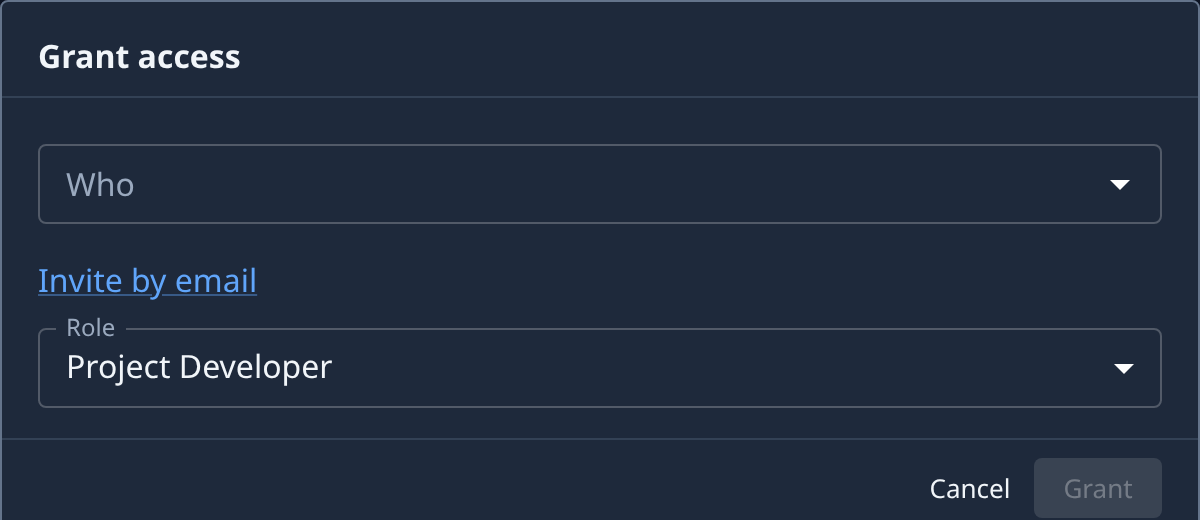
Select Grant access. The Grant access dialog opens.
-
Select Who. The list shows the people in your organization, then its groups, each marked Group with its member count. Pick each person or group in turn. Type part of a name or email to narrow it.
-
Pick the Role: Org Owner, Org Admin or Project Maintainer. It starts on Project Maintainer, which lets people create projects and shows them only their own. Hover over Role to read what each one may do.
-
Select Grant. Everyone you picked gets the role at once. If any one of them can't have it, nobody gets it and the dialog says why.
-
Check the list. Each new row reads Direct under Source and Never under Expires.
Things to know
- No expiry. An organization role never expires, so the dialog has no Expires field. To give access for a limited time, grant a role on one project instead. See Give someone access to a project.
- Org Owner goes to people only. You can't grant Org Owner to a group.
- Someone new? The list holds only people already in your organization. Select Invite by email to create their account first. See Invite a person and grant access.
- A role for a group reaches everyone in it, now and later. See Create a group.
To take a role away again, see Review who holds an organization role.
Related
- How team and access work: roles, groups, and how they add up.
- Change a person's role or remove them: change one person's role from their account.
- Your organization: every column on the Access tab.