Reset a forgotten password
When you can't sign in because you forgot your password, ask Jaah to email you a link. The link opens a page where you choose a new one. You don't need to be signed in, and no admin has to approve it.
Who can do this: everyone with a password on their account. If you are still signed in somewhere, change it from your profile instead: see Change your password.
Ask for a link
- On the sign-in page, select Forgot password? under the Password field. The Reset your password page opens.
- Type the address you sign in with in Email. If you typed it on the sign-in page, it is already filled in.
- Select Send link. The page changes to Check your email.
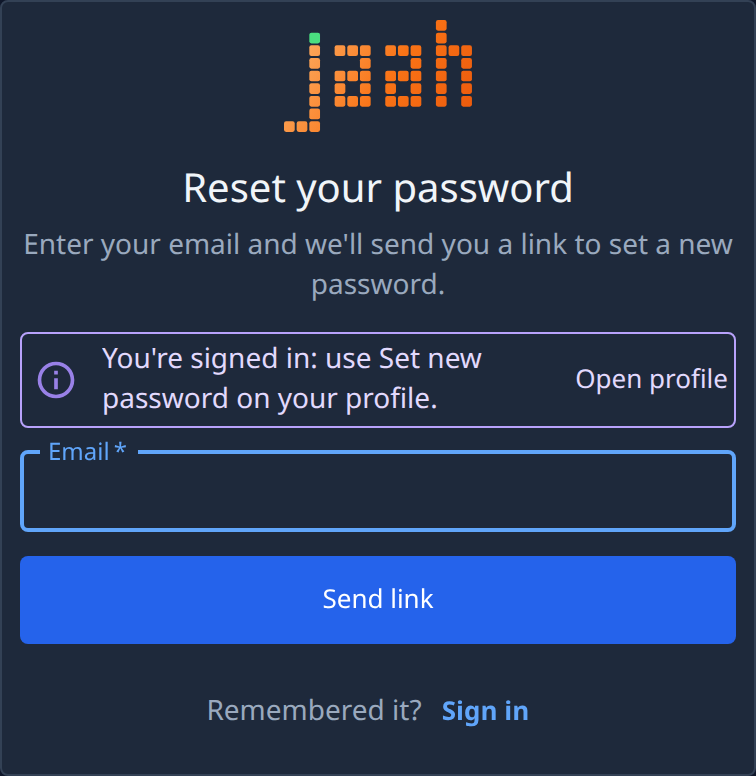
The page always says "If an account exists for that email, we've sent a link to set a new password.", whether or not that address has an account. The link works once and expires in 1 hour.
Set the new password
- Open the email and select its link. The page checks the link first, showing Checking your link.
- Under Set a new password, check that the email address shown is yours.
- Type the new password in New password. It needs 8 to 128 characters and can't be your email address. Select Show at the end of the field to see what you typed.
- Type it again in Confirm password.
- Select Set password. It reads Saving… while it works, then the sign-in page opens with your email filled in.
- Sign in with the new password. If your account uses two-factor sign-in, it still asks for your code.
If the two passwords differ, Confirm password says "Passwords don't match." Fix it and select Set password again.
When the link has expired
A link that was already used, has expired or was cut short opens This link no longer works instead of the form.
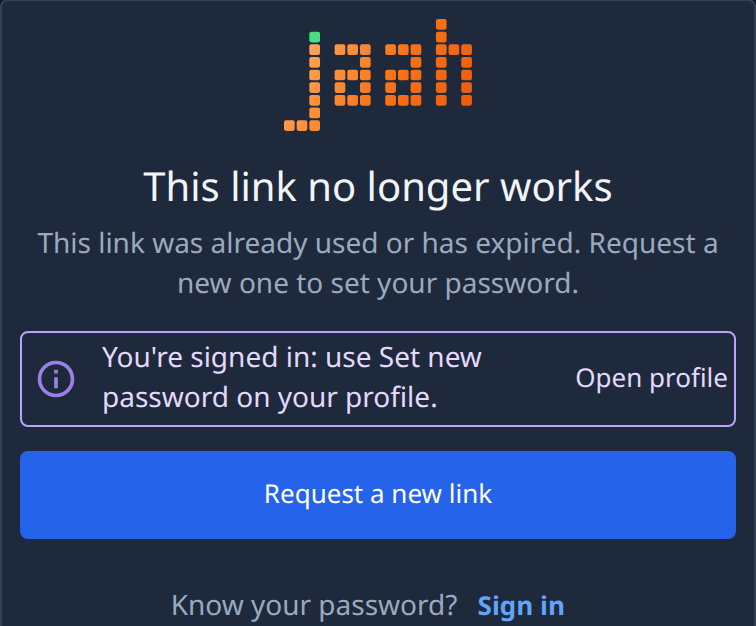
- Select Request a new link. The Reset your password page opens.
- Type your Email and select Send link again.
- Use the newest email. Each new link is good for 1 hour from when it was sent.
No email after a few minutes? Check your spam folder, then select Send another link next to Didn't get it? on the Check your email page. If the page says "Too many password reset requests. Try again in an hour.", wait an hour before you ask again.
If your organization makes members sign in with Google, Microsoft or its own single sign-on, a new password won't let you in. Sign in with that account instead.
Related
- Sign in: every way to sign in, and two-factor sign-in.
- Reset your password: every message on the page that sends the link.
- Set a new password: every field on the page the link opens, including a first password from an invitation.
- Sign-in and two-factor: when sign-in still fails.