Find and change a setting
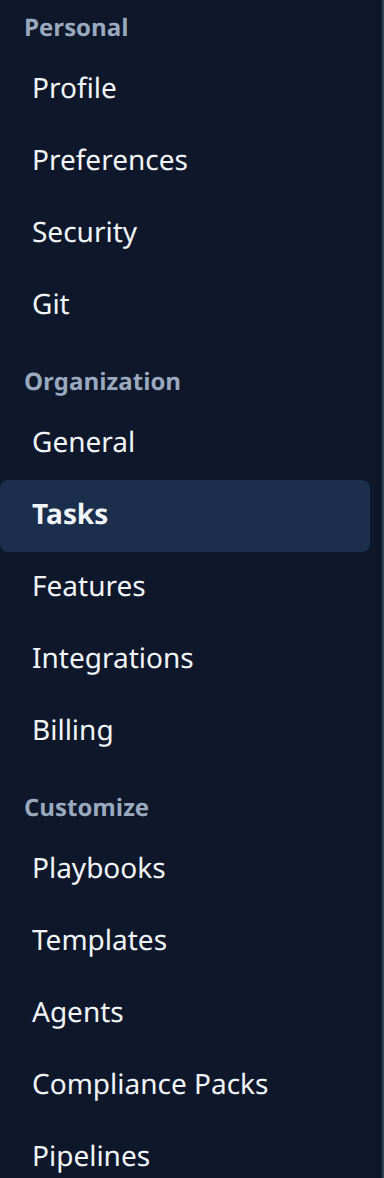
Settings has three groups of categories. Personal holds your own settings: Profile, Preferences, Security and Git. Organization holds what your organization sets for everyone: General, Tasks, Features, Integrations and Billing. Customize holds Playbooks, Templates, Agents, Compliance Packs and Pipelines.
Who can do this: everyone can change their own Personal settings. The Organization categories need permission to view system settings, which Org Owners and Org Admins hold; without it you see only Personal and the Customize pages your role opens.
Steps
-
In the sidebar, select Settings.
-
Pick a category on the left, under Personal, Organization or Customize. In a narrow window, pick it from Category beside the search instead.
-
If you don't know where a setting lives, type part of its name in Search settings. Each result shows where it is, for example Unread glow under Tasks › Board. Select the result to open its card.

-
Hover the setting's name to read what it does. Default · beside the box shows the value used while your organization sets none.

-
Change the value. A checkbox saves as soon as you tick or clear it; skip to step 7.
-
Any other value waits for you: select Save at the top of the page, which counts your changes, for example Save (2). Discard drops them instead.
-
To go back to the default later, select Reset to … beside the box (Clear when the default is nothing).
If the save is refused, the row says why and what is still saved; fix the value and select Save again.
Related
- Searching by what a setting does: Find a setting.
- Every category and card: Settings.
- Your own Personal settings: Your profile.
- Who holds which role: How team and access work.