Give someone access for a limited time
A contractor joins for a month, or a teammate from another team helps on one project for a sprint. Give them a role with an end date, so the access stops on its own and nobody has to remember to take it away.
Who can do this: requires the org admin role (Org Owners and Admins).
An end date can be set on a role on a Project or an Account (a model account). A role on the whole Organization never expires, so the dialog offers no Expires for it. The person needs an account first; see Invite a person and grant access.
Grant the role with an end date
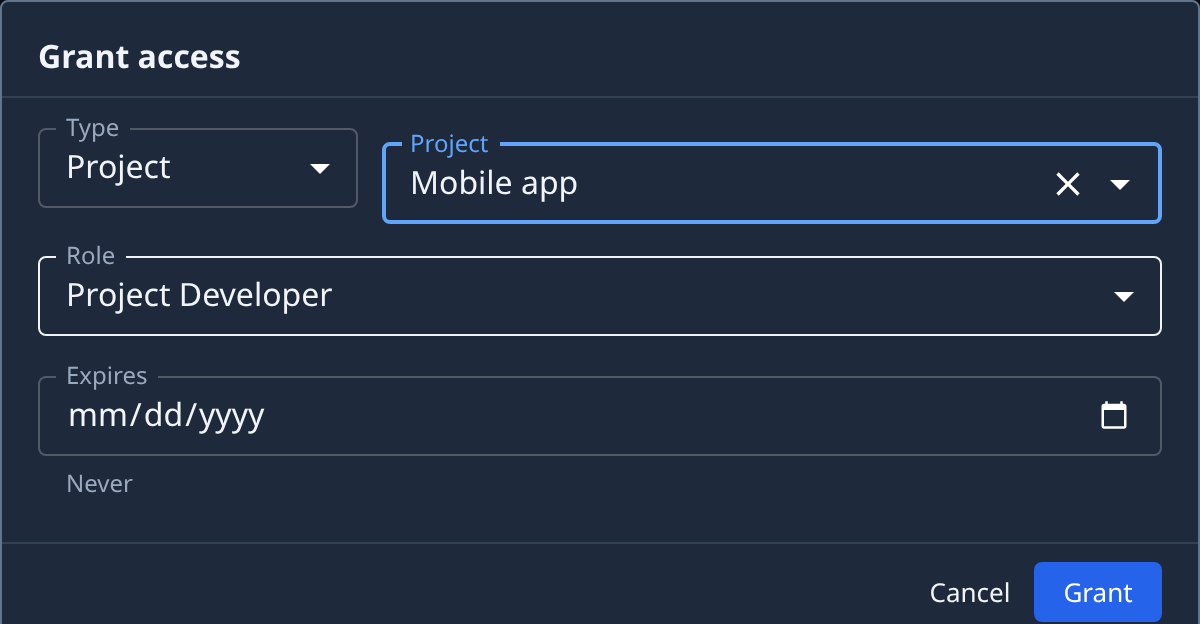
- In the sidebar, select Directory, then the People tab.
- Select the person's row. Their account opens.
- Select the Access tab, then Grant access. The Grant access dialog opens.
- Set Type to Project or Account, then pick the project or the model account in the list beside it.
- Pick the Role, for example Project Developer.
- In Expires, pick the last day they should have access. The access ends after that day. Left empty, it reads Never.
- Select Grant.
- Check Organization and projects on the Access tab: the new role reads Direct, with Expires and the date beside it.
Give them more time
A grant's end date can't be changed. To give more time, take the grant away and grant it again with a later date, before the first one ends:
- On the person's Access tab, select Remove on the role's Direct line, and confirm.
- Grant the role again, as above, with the new date in Expires.
When the day has passed
The role stops working once the date you picked has passed. On the project's Settings › Access list, the row is dimmed and its Expires reads Expired. Select Remove in its ⋯ menu to clear it away.
An end date only ends that one grant. If the person also holds the role through a group, or through the organization, they keep it: check on their Access tab, where each role says Direct, Via group or Inherited from. See Check what someone can access.
Related
- Give someone access to a project — grant a role from the project's side, to a person or a group, with or without an end date.
- How team and access work — roles, groups and where a person's access comes from.
- People — every part of a person's Access tab.