Change your password
You can set a new password from your own profile whenever you are signed in. You don't need the old password, and no one else has to approve it. If you can't sign in because you forgot it, use Forgot password? on the sign-in page instead: see Reset your password.
Who can do this: everyone, for their own account only.
-
Select your initials at the bottom of the sidebar, then My Profile. Settings opens on Profile.
-
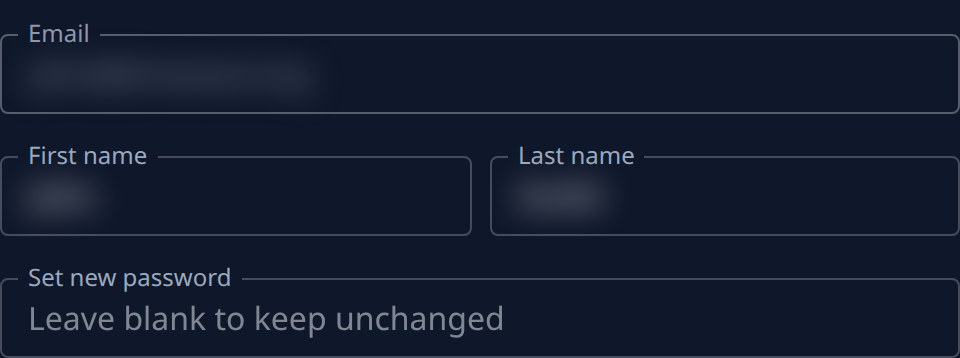
Find Set new password. While it is empty it reads Leave blank to keep unchanged.
-
Type the new password. It needs 8 to 128 characters and can't be your email address.
-
Select Save at the bottom of the page. Until you type something, Save is greyed out with No changes beside it.
-
Check the top of the page. Saved means the new password is in place. A message there instead says what to fix, for example The new password must be at least 8 characters. or Don't use your email address as your password. Fix it and select Save again.
-
Sign in with the new password next time, on every browser.
Saving a new password does three things at once:
- You stay signed in on this browser.
- Every other browser where you were signed in signs out.
- Every trusted device is forgotten, so each browser asks for your two-factor code again at the next sign-in. See Remove a trusted device.
If you changed your name in the same section, the one Save keeps both. Your sign-in Email can't be changed here: an admin changes it for you, see Correct someone's name or email.
If your organization makes members sign in with Google, Microsoft or its own single sign-on, the sign-in page refuses a password whatever you set here. Sign in with that account instead.
Related
- Your profile: every field under Profile.
- Sign in: every way to sign in, and two-factor sign-in.
- Sign-in and two-factor: when the password is refused at sign-in.