Review who holds an organization role
Org Owner and Org Admin reach every project, and Project Maintainer granted here can create projects, so check now and then who holds one. The Access tab lists every person and group with a role across the whole organization, in one place.
Who can do this: the Access tab requires the org admin role. Only an Org Owner can remove another Org Owner's role: an Org Admin sees no ⋯ on those rows.
Read the list

- In the sidebar, select Directory, then People.
- Select the Access tab.
- Type a role in Filter, for example
Org Admin, to keep only the rows that hold it. - Read Source on each row: Direct means the role was granted to that person or group; Via and a group's name means the person holds it as a member of that group.
- Read Last active. Someone with an organization role who hasn't used Jaah for months is a candidate to remove.
- Read Expires: Never, a date, or Expired. An expired row is greyed out and grants nothing.
- Select Role or Last active at the top of the list to sort by it.
Hover over a row to read its other roles, for example Org Admin (Via timesaver-admins) under a person who is also an Org Owner. A large group lists its members under its own row: select the arrow beside its name to show them.
Take a role away
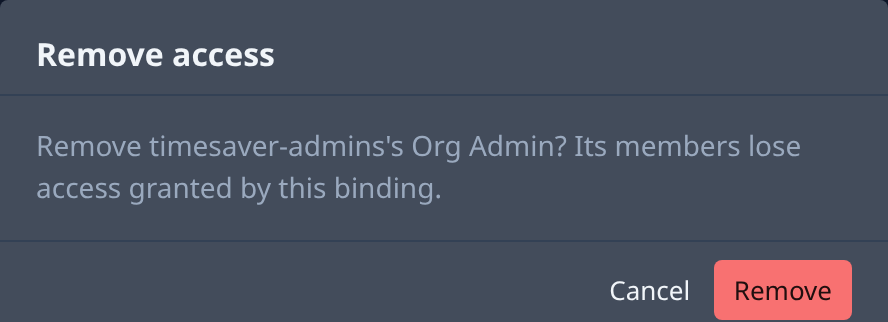
- On a Direct row, select ⋯, then Remove.
- Read the Remove access dialog. It names the person or group and the role. For a group, every member loses what this role gave them.
- Select Remove, or Cancel to keep it.
A role that comes through a group can't be removed on its own row.

- On the person's Via row, select ⋯.
- Select Open group to remove. The group opens.
- Take the person out of the group there, or remove the role from the group itself. See Add someone to groups.
Your organization always keeps at least one Org Owner: removing the last one is refused.
Related
- Change a person's role or remove them: change one person's role from their account.
- Check what someone can access: every role one person holds, on the organization and its projects.
- How team and access work: the roles and where each comes from.
- Your organization: every column and control of the Access tab.