Make members sign in with Google or Microsoft
When everyone in your organization has a Google Workspace or Microsoft Entra ID account, you can make that the only way they sign in: only accounts from that Workspace or tenant may sign in, and passwords and other accounts stop working. There is no app to register at Google or Microsoft, and every plan has it.
Who can do this: Org Owners and Org Admins. Other members don't see the Organizations settings.
To use your own identity provider app, Okta, SAML, Require SSO or SCIM instead, see Set up single sign-on.
Before you start
- Have your Workspace domain (for example
example.com) or your Entra tenant ID at hand, and check it twice: a wrong one locks everyone out, you included. - Saving signs every member out, you included. Pick a quiet moment and tell your team first.
- Decide whether your provider already asks every member for a second factor. Only then tick This provider enforces MFA for every member; otherwise members still enter Jaah's own authenticator code.
Turn it on
-
In the sidebar, select Settings, then General.
-
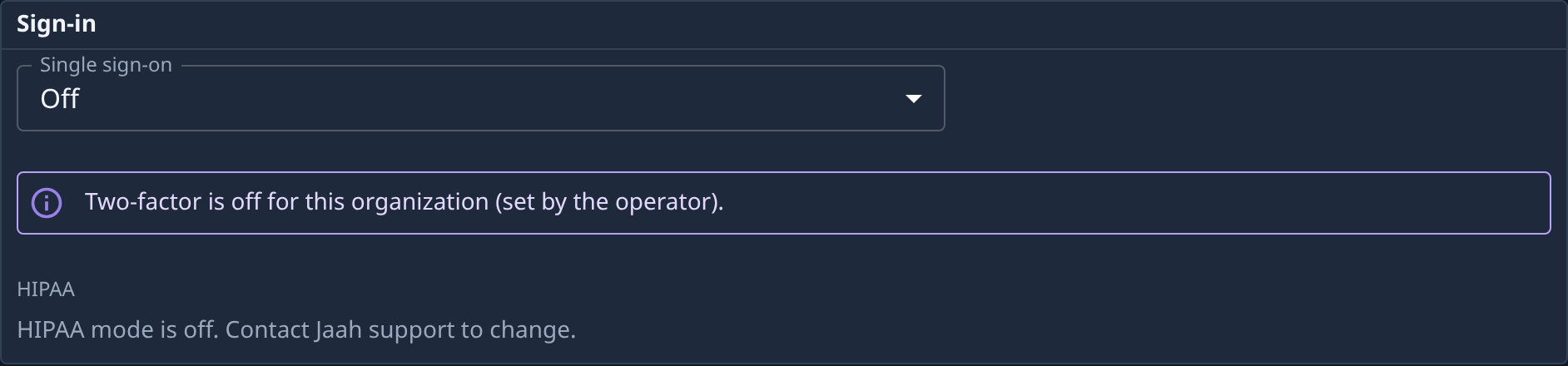
Find the Sign-in card. Single sign-on reads Off while members sign in any way the console offers.
-
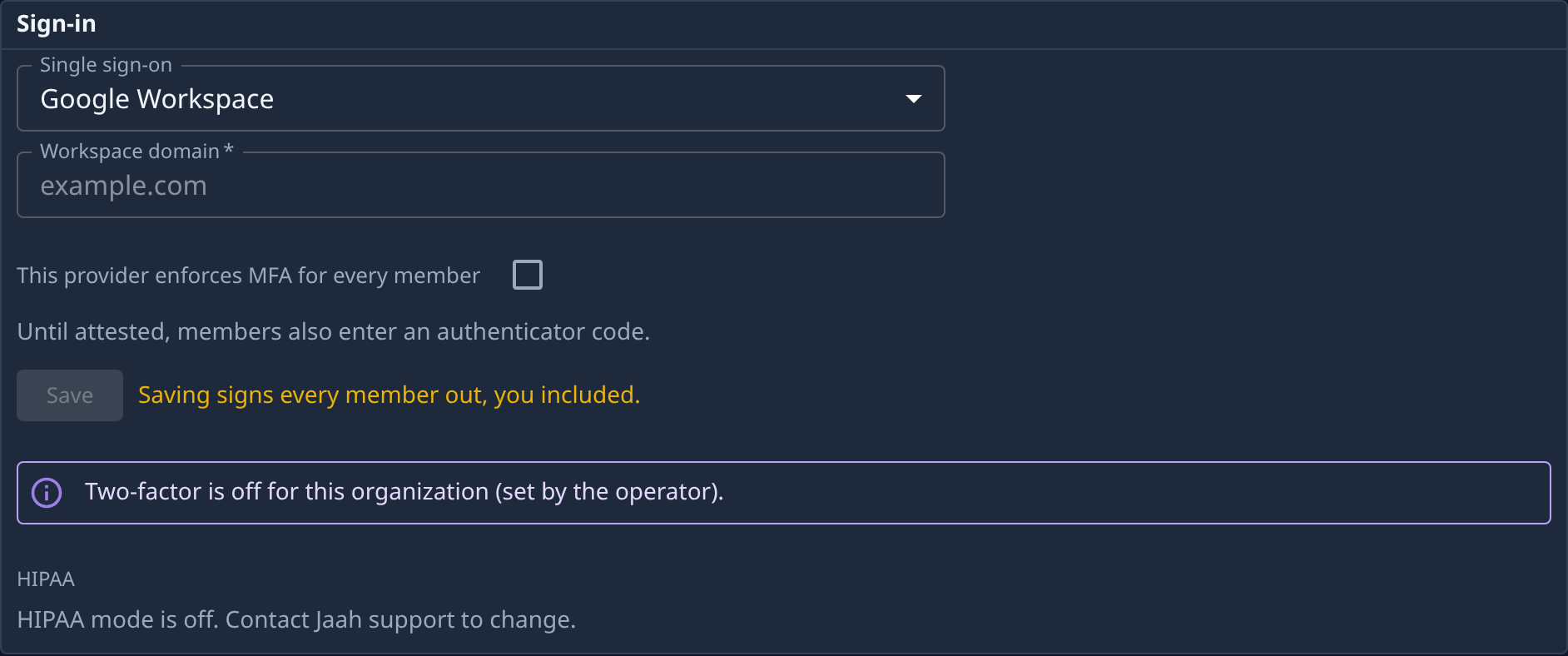
In Single sign-on, pick Google Workspace or Microsoft Entra ID. A field for your Workspace domain or Entra tenant ID appears under it.
-
Enter your Workspace domain or Entra tenant ID. Save stays greyed out while it is empty.
-
If your provider asks every member for a second factor, tick This provider enforces MFA for every member. The line under it says Saving records you as the attester. Members then skip the authenticator code. Leave it clear and it reads Until attested, members also enter an authenticator code.
-
Select Save. Saved. appears beside it, and you are signed out.
-
Sign in again through Google or Microsoft to check it works.
Once saved, the line under the tick box names who confirmed it and when.
Change or turn it off
- A new provider, domain or tenant: change it and select Save. Every member is signed out again.
- MFA no longer enforced by your provider: clear the tick box and select Save. Every member is signed out and asked for an authenticator code from then on.
- Back to any sign-in: set Single sign-on to Off and select Save.
Related
- How team and access work — who your members are and what their roles let them do.
- Reset someone's two-factor or SSO link — when someone can't get past the authenticator code.
- Your organization — every control on the Sign-in card.