Remove a stage from a playbook
Remove a stage when a playbook does a step your team no longer needs, then fix any stage that still points at it before you save.
Who can do this: changing a playbook needs the Owner or Admin role in your organization. Built-in playbooks are read-only; duplicate one first, as in Create a playbook.
-
In the sidebar, select Settings, then Playbooks under Customize.
-
Under Your playbooks, select the playbook's name, or its ⋯ and then Edit.
-
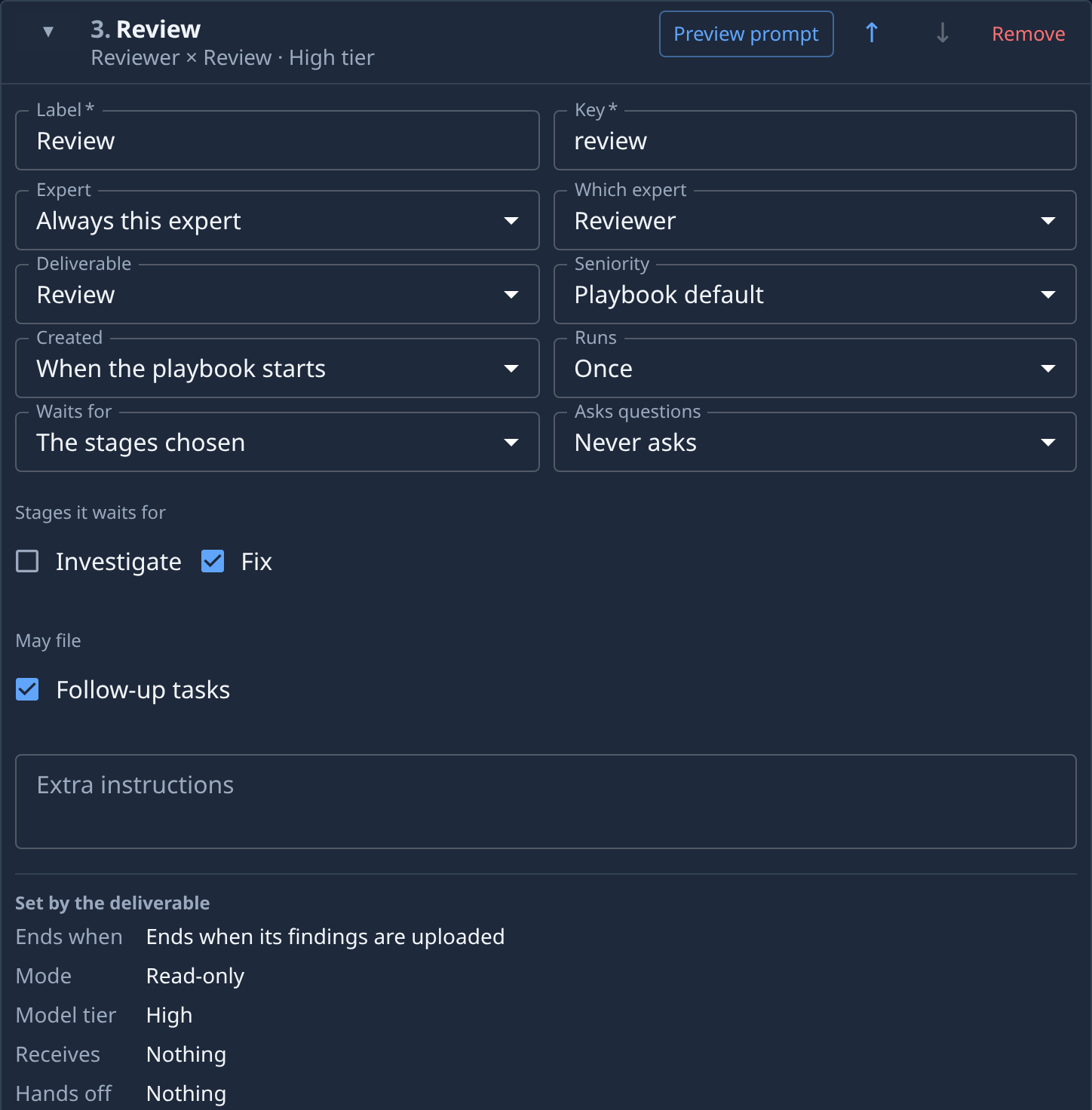
Select the Stages tab and open the stages after the one you will remove with ▸. Look at their Waits for and Created fields. A stage set to The stages chosen lists its ticks under Stages it waits for; a stage set to By an earlier Plan stage names its stage in Created by.
-
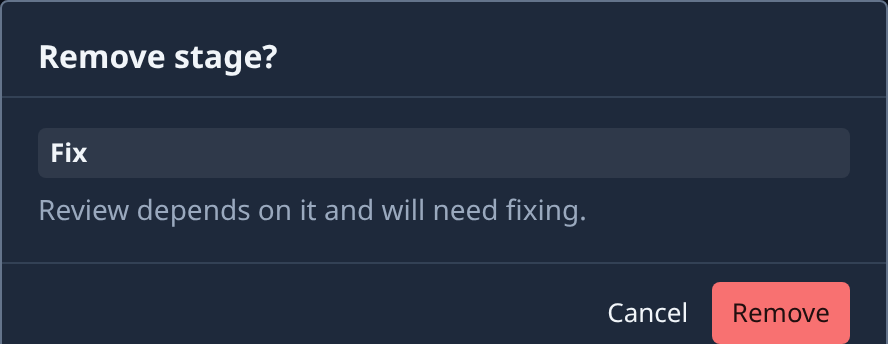
On the stage you want to take out, select Remove (🗑 on a narrow card). Remove stage? names the stage and the stages that depend on it, or reads Nothing depends on it. Select Remove. The tab's count drops by one and the Chain on the Playbook tab no longer shows it.
-
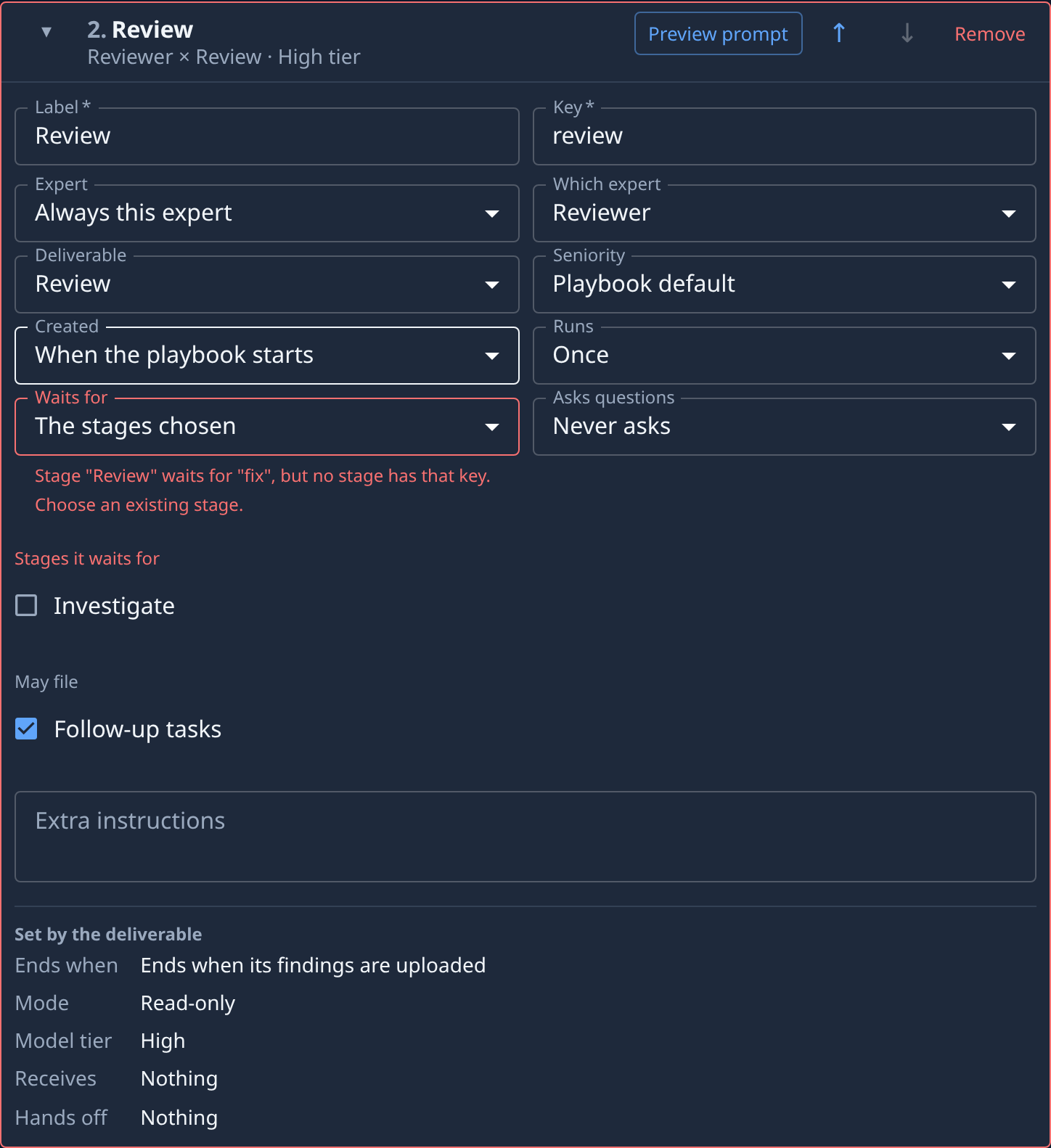
Read the cards that are left. A stage that waited for the removed one, or was created by it, turns red and names the missing stage, for example Stage "Review" waits for "fix", but no stage has that key. Choose an existing stage. Save stays greyed out until each error is fixed.
-
Fix each red card. Tick another stage under Stages it waits for, or set Waits for to Every earlier stage or Nothing. For Created by, pick another Plan stage, or set Created to When the playbook starts. A stage set to Every earlier stage needs no change.
-
Select Save.
Removed the wrong stage? Before you save, select Cancel, then Discard in Unsaved changes: the playbook stays as it was. A playbook needs at least one stage, so removing the last one shows Add at least one stage. at the top of the page until you add another.
More on what a stage waits for: Set what a stage waits for. Every stage field is described in Playbooks, and how stages fit together in How personas and playbooks work.