Change a project's integration branch
Each repository in a project has an integration branch: the branch its task pull requests open against.
The primary repository's branch is the project's own integration branch. Change it when your team moves
its work to another branch, for example from main to develop.
Change it in the repository editor in Settings › General, or in Branch under Integration branch in Settings › Branches: both show the same value. CI Pipeline shows it read only, with an Edit link that brings you to General.
Who can do this: anyone who may edit the project, for a repository other than the primary. The primary's branch needs permission to edit nodes across your organization and edit access to at least one of its nodes, which Org Owners and Org Admins usually hold. For anyone else that field is read only, and its label's hover says Pull requests open against it; locked for you.
Change it
-
In the sidebar, select Directory, then the Projects tab.
-
Select the project's name. Its Settings open on General.
-
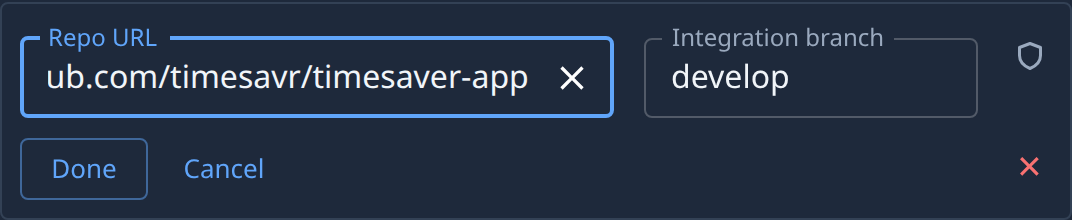
On the Repository line, select the repository's name. With two or more repositories, Primary marks the one whose branch is the project's. An editor opens under the line.
-
In Integration branch, type the new branch's name exactly as it is on your Git host. Create the branch there first: Jaah checks that the name is a valid branch name, not that the branch exists.
-
Select Done. The editor closes and the change waits for Save. To drop it instead, select Cancel or press Escape.
-
Select Save at the bottom of Settings.
-
Check the result: select Branches in the list of sections. Its Branch field now shows the new branch.
Pull requests that tasks open from now on target the new branch.
If the field won't change
- It is read only. You are on the primary repository without the node permissions it needs. Ask an Org Owner to change it, or to give you those permissions.
- The save is refused. The name is empty, or isn't a valid branch name. The page opens the section that holds the field and shows why under it. Fix the name and select Save again.
Related
- What the editor's other fields do, including Set primary: Projects.
- Add a second repository with its own branch: Add or remove a project's repository.
- The branch prefix, read only and force push rules for the same branch: Set how runners push to a repository.
- What a project's branches and repositories are for: How projects work.