Use a repository on your own GitLab server
Jaah knows the public GitHub, GitLab, Bitbucket and Azure DevOps sites by their addresses. A GitLab your company runs on its
own host, such as git.example.org, is one Jaah can't recognise by name. You tell it two things: the host is
GitLab, and where GitLab's root is when it isn't at the top of the host. Then tasks clone the repository and open
their merge requests through that GitLab.
Who can do this: adding a repository to an existing project needs the permission to edit the project. A new project needs the permission to create projects. Every member connects their own Git account.
Connect your GitLab account first
A task clones, pushes and opens its merge request with the Git account of the person who started it, so connect yours before the first task.
- Select your initials at the bottom of the sidebar, then My Profile, then Git.
- Select +. In Type, pick Self-managed GitLab.
- Enter the server's Base URL and a Token you created on it, then select Test and connect.
The full steps, and the other ways to connect, are in Connect your GitHub, GitLab or other code host.
Add the repository to a project
-
In the sidebar, select Directory, then the Projects tab, and select the project's name. Its Settings tab opens on General.
-
On the Repository line, select Add. An empty editor opens under the line.
-
In Repo URL, type part of the repository's name. With your GitLab account connected, its repositories are listed: pick yours, and Jaah fills in the forge and the base URL for you. Go on to step 6.
-
If the repository isn't listed, paste its address, such as
https://git.example.org/platform/billing-api. A Forge list appears under it, set to Not set. Pick GitLab (self-managed). -
If GitLab sits under a sub-path of the host, such as
https://example.org/gitlab, enter that address in GitLab base URL. Leave it empty when GitLab is at the host's root.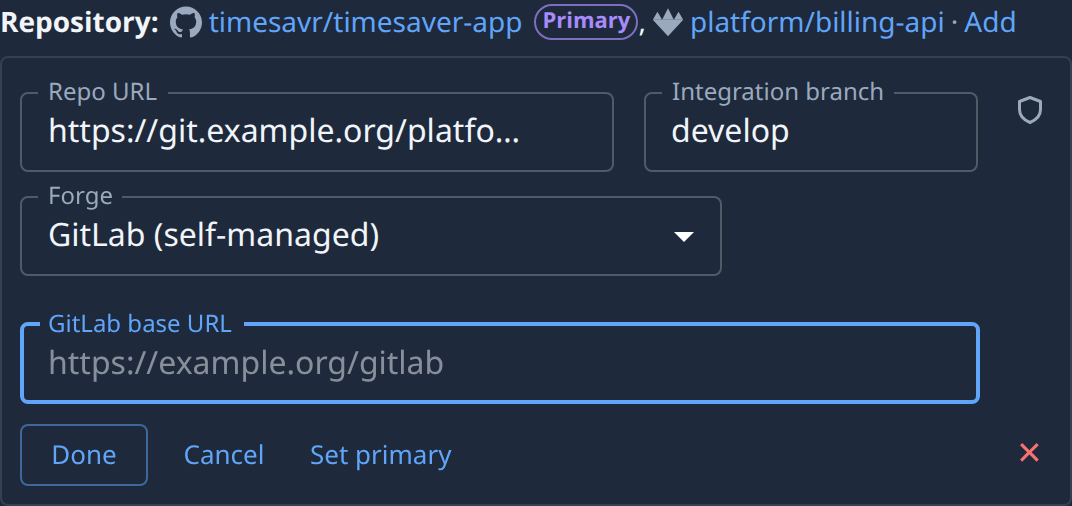
-
Check Integration branch, the branch merge requests open against. Jaah fills it in when it can read the repository.
-
Select Done. The repository joins the Repository line with GitLab's mark.
-
Select Save at the bottom of the page.
To make it the project's main repository, select its name on the line, then Set primary, Done and Save. More on the primary in Add or remove a project's repository.
On a new project
The same fields are on the New project page. Pick App / Website, then Existing, and fill in Repo URL as in steps 3 to 6 above: pick your repository from the list, or paste its address and pick GitLab (self-managed) under Forge. Then select Create project. See Add a project.
If something is wrong
- A line under Repo URL says the repository is not available to your connection: your GitLab account can't see it. Check the address, or ask a GitLab admin for access to it.
- No Forge list: Jaah already knows the host, such as the public GitLab site, and needs nothing more.
- A task waits at the start and says what's missing: the person who started it has no Git account for this server. They connect one as above.
Related
- What a project's repositories decide: How projects work.
- Every field on General: Projects.
- Set the branch rules for the repository: Set how runners push to a repository.