Open the tasks automations filed
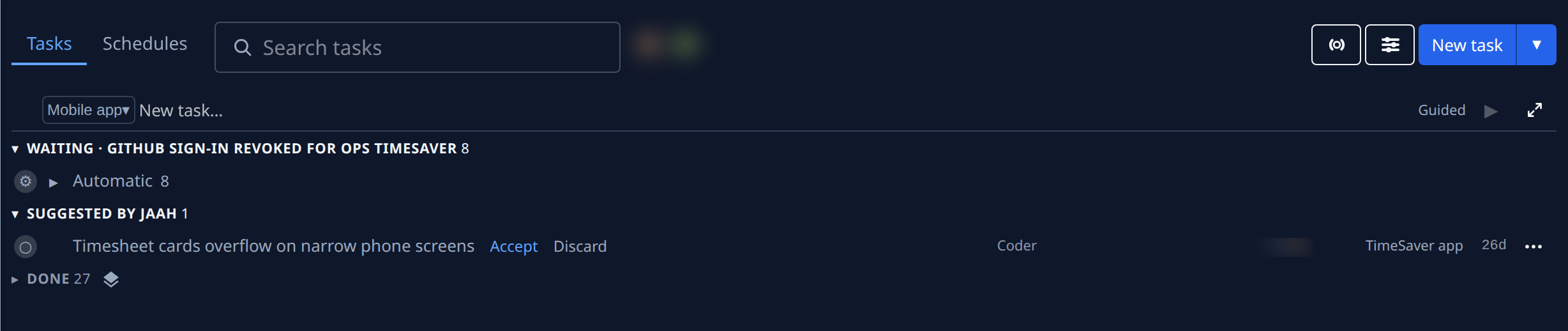
Work that nobody typed in by hand, such as a nightly report a schedule files, a task a trigger files from an event, or a follow-up an agent files on its own, can fill the board fast. The Tasks view folds it under one Automatic row in each list, closed until you open it, so the tasks people asked for read first.
Who can do this: anyone who can see tasks.
-
In the sidebar, select Tasks. The page opens on the Tasks view.
-
Look at the end of each section, such as Questions, Queued or a waiting group. A gear icon, Automatic and a count sit after the section's own tasks. A section with no automatic work has no such row.
-
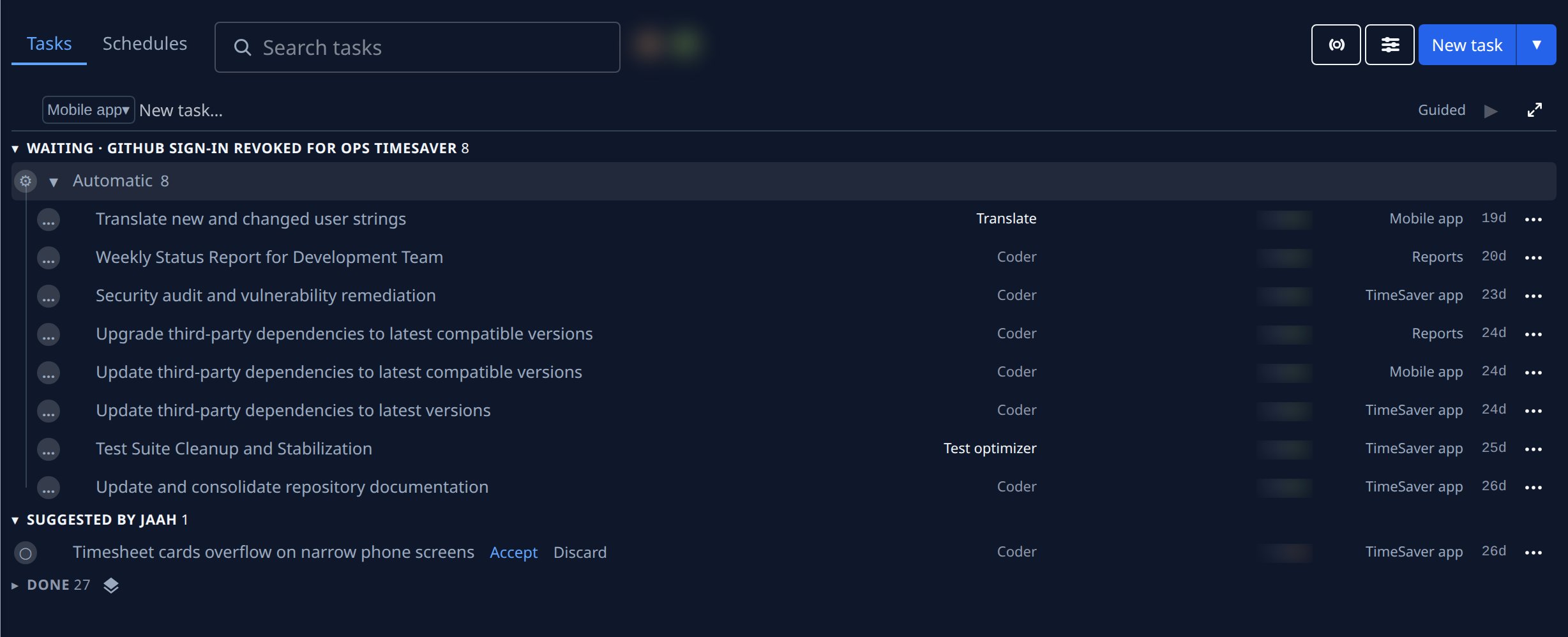
Select ▸ on the Automatic row, or the word Automatic, to open it. Its tasks are listed one level in, each with its persona, who filed it, its project and its age.
-
Select a task's title to open it. To find the schedule or trigger behind it, see Find the automation that filed a task.
-
Open Done the same way: finished automatic work folds under its own Automatic row there, after the releases.
-
Select ▾ on the Automatic row, or Automatic again, to fold it.
What never folds
A task that needs you stays a row of its own, even when an automation filed it:
- a task asking a question;
- a task that Failed;
- a task Suggested by Jaah, with Accept and Discard.
A task started from a Jira, Linear or Backlog issue never folds either: it is someone's assigned work.
Exceptions and other views
- A link to one task opens the Automatic row that holds it, so you land on the row.
- With Source under Filter & view set to automation sources only, nothing folds, since those rows are what you asked for.
- The Pipeline view folds the same work under Automatic in each stage, and in Next release: see Follow a release on the pipeline view.
Related
- Fold finished tasks in each group: the Done rows at the end of each group.
- How automations work: schedules, triggers and the tasks they file.
- Find a task on the board: search and filter the board, Source included.