Spot an automation that keeps skipping or failing
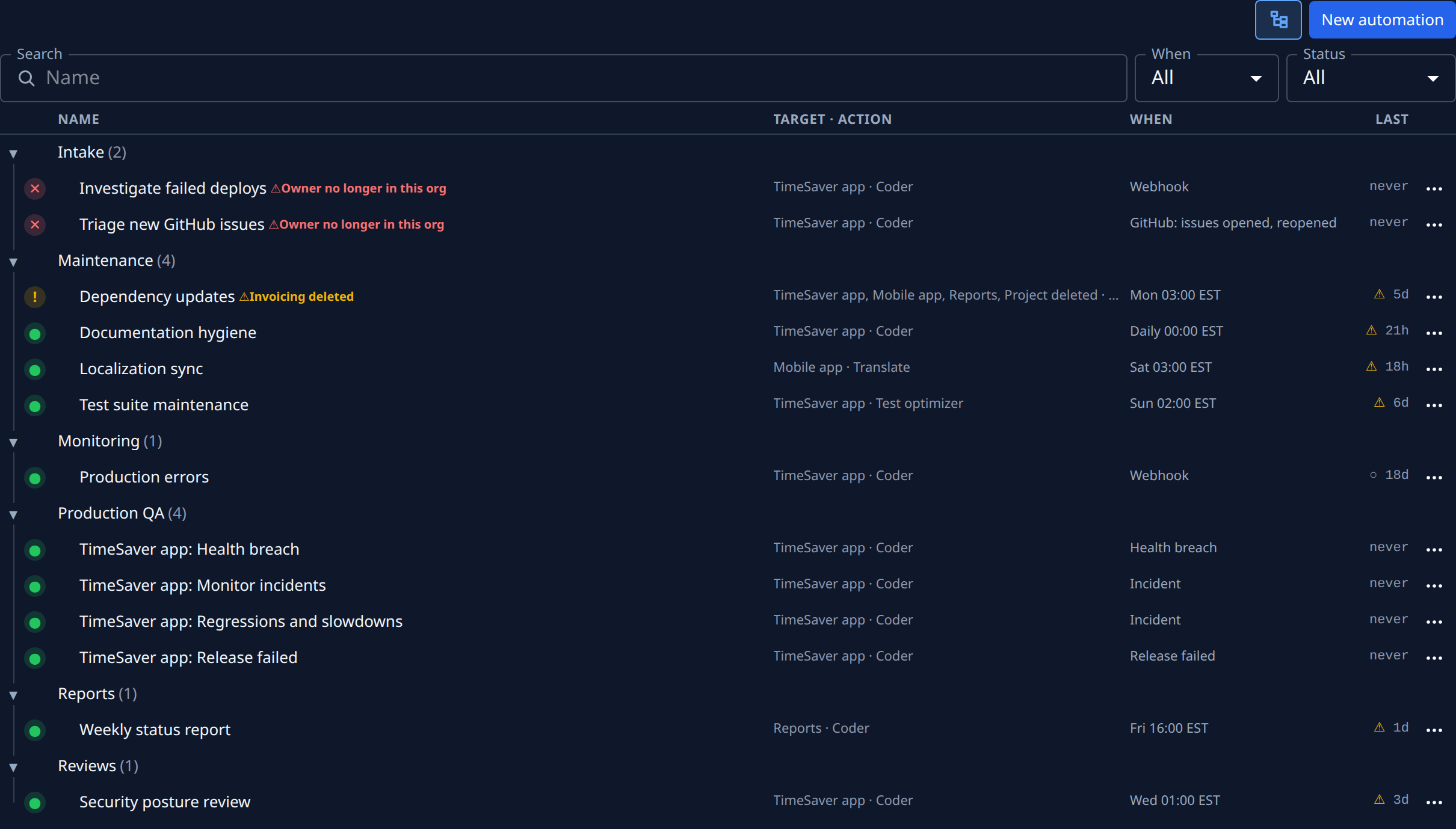
An automation that skips or fails run after run files no tasks, even when its status still reads Active. Once enough runs in a row skip or fail to reach your organization's alert threshold, the automations list marks it with ⚠ in its Last column, so you can see which ones need you before anyone asks why nothing was filed.
Who can do this: requires the org admin role. Automations are listed under Audit, which only Org Owners and Admins see.
-
In the sidebar, select Audit, then the Automations tab.
-
To narrow the list, type part of a name in Search, or set Status to Failing or Partly failing. An automation that only skips can still read Active, so leave Status at All to see every one marked ⚠.
-
Look down the Last column, which shows each automation's last run and how long ago it was. A ⚠ in place of the usual mark means several runs in a row skipped or failed.
-
Hover the Last cell. It names the last run's outcome and time, then how many runs in a row skipped or failed, such as 4 skipped or failed in a row. For a run that did no work, it also says when the automation last did.
-
Select the automation's name to open its page beside the list, then select the Runs tab to read each skipped or failed run. For a failing one on a phone, where there is no hover, select View failure in the row's ⋯ menu instead: it opens the Runs tab.
-
Fix what the runs name, as in Find out why an automation failed. For one that keeps skipping, read the run's line: a target whose previous task is still open is skipped each time until that task finishes, and so is a run that starts while the one before it is still going. See What a run skips.
-
Select Run now in the row's ⋯ menu, or at the top of the automation's page. A run that does its work clears the ⚠. If the automation isn't needed for now, select Pause in the same menu.
The same Owners and Admins are told when an automation reaches the threshold; see Get told when an automation or trigger breaks.
Related
- How automations work: what each run outcome and status means.
- Run, pause or change an automation: the row menu and the automation's own page.
- Automations: every column and control on the list.