File an automation's tasks under a feature
An automation files its tasks straight into a project. When they belong to one piece of work, such as a nightly check on the billing pages, file them under that work's feature instead. They then show under the feature in the sidebar, like any task filed there by hand.
Who can do this: changing an automation requires the org admin role. The Feature list offers only features of projects where you can edit tasks.
A feature belongs to one project, so this works only for an automation that files a Task into exactly one project. One that targets nodes, several projects or All shows Feature greyed out; hover its label for Feature needs exactly one target project. One that files from a Template has no Feature.
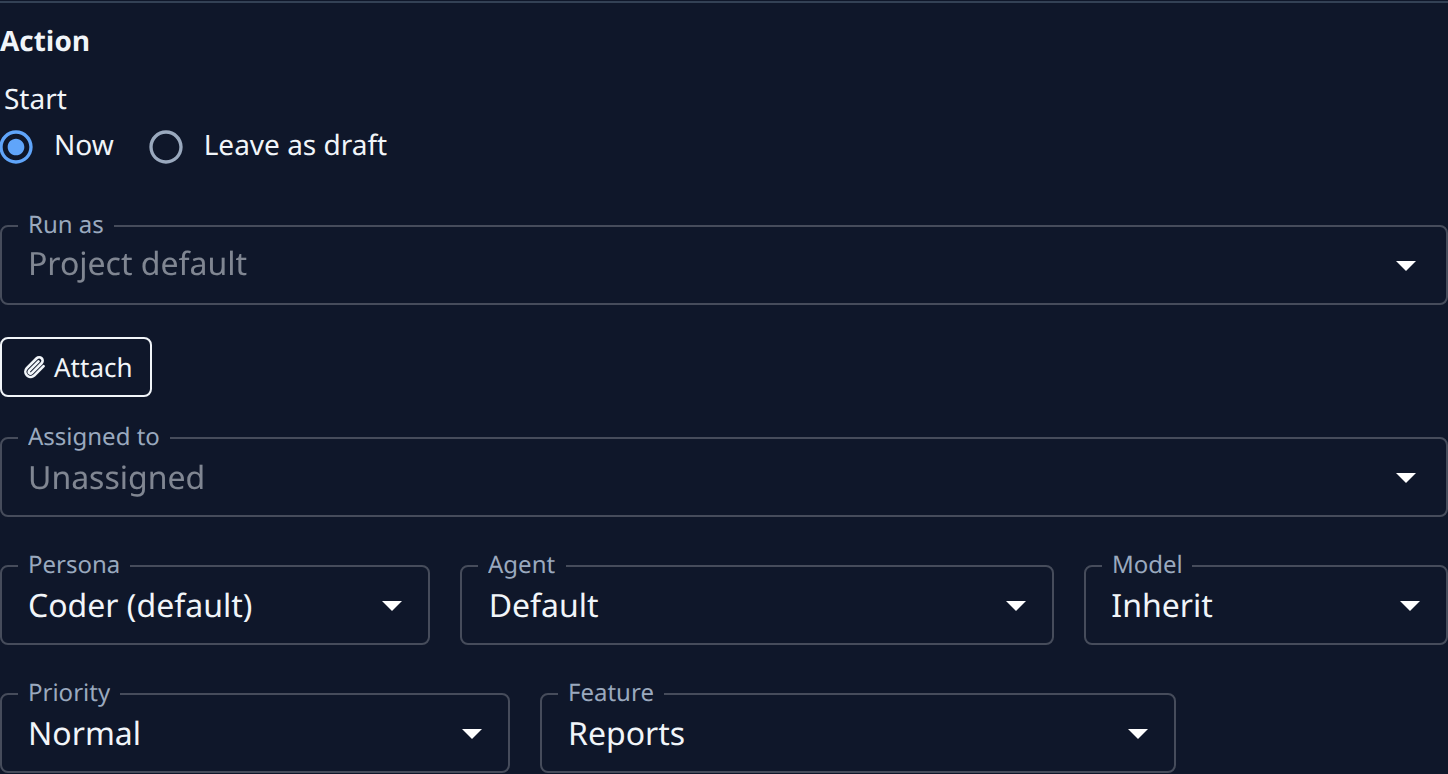
- In the sidebar, select Audit, then the Automations tab, and open the automation.
- On Setup, check Target: Run in projects must read one project, such as 1 project: Billing. If it doesn't, pick Specific and tick only that project, as in Choose what an automation runs on.
- Open the Settings tab.
- Under Action, open Feature. It lists the project's features, after the project's own name.
- Pick the feature. To file into the project with no feature again, pick the project's name.
- Select Save at the bottom of the page.
- After the automation's next run, select the feature in the sidebar, under its project. The new task is there, folded under the Automatic row of its section. If it isn't, turn on Hidden in Filter & view: a task an automation starts stays off the default board.
Only tasks filed from now on go under the feature; tasks filed before stay where they are. To file one of them by hand, see Organize tasks into features.
Changing Target to another project, or to more than one, clears Feature: a feature belongs to its own project only.
If the feature is deleted later, Feature reads Deleted feature. Pick another feature, or the project's name, and save.
Related
- Organize tasks into features: what a feature is and how tasks are filed under one by hand.
- Open the tasks automations filed: the Automatic row where an automation's tasks fold.
- How automations work: When, Target and Action.
- Automations: every field on the Settings tab.