Remove several people at once
When a team or a group of contractors leaves together, you don't have to open each account. Tick their rows on the People list and use the bar above it. Disable stops them signing in but keeps their accounts, groups and history. Delete removes the accounts for good.
Who can do this: Org Owners and Org Admins. Without the org admin role the rows have no tick boxes. Your own account is never disabled or deleted this way.
Before you remove anyone, move what they own. See Hand over a leaving member's work.
Pick the people
- In the sidebar, select Directory, then People.
- Narrow the list if it helps: type part of a name or email in Search, or set Status, for example to Invited to clear out invitations nobody accepted.
- Tick the row of each person to remove, or the box in the heading to tick every row on the page. On a phone, tap Select next to Add user first.
- Read the bar above the list. It shows how many rows you ticked, for example 2 selected, then Enable, Disable and Delete. ✕ clears the ticks.

Turning the page or changing a filter clears the ticks, so pick everyone from one page of results.
Disable them
- Select Disable on the bar.
- The dialog asks, for example, Disable 3 users?, names each account, and says each one is signed out and can't sign in until enabled.
- Select Disable. A line under the bar counts them off, then reads, for example, Disabled 3 of 3.
- Check the list: each row now shows a Disabled tag.
To let any of them back in later, see Let disabled people sign in again.
Delete them
- Select Delete on the bar.
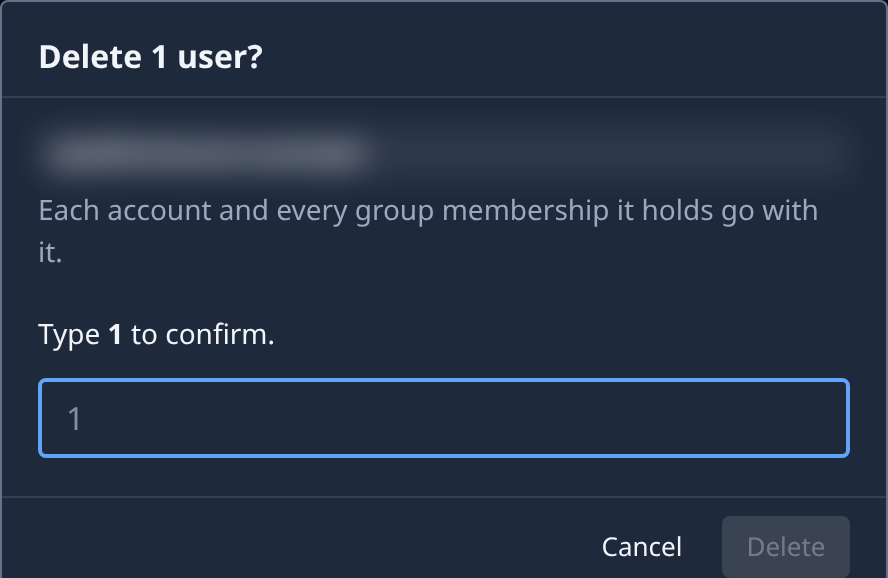
- The dialog asks, for example, Delete 3 users?, names each account, and says each account and every group membership it holds go with it.
- Type the number shown under Type N to confirm. in the box. Delete stays off until the number matches, so a stray click can't delete anyone.
- Select Delete. The line under the bar reads, for example, Deleted 3 of 3.
- Check the list: the rows are gone. Deleting an invited person's row also withdraws their invitation.
What the counts mean
The dialog counts only the accounts it can act on. If you ticked your own row, it is left out, so two ticked rows can ask Delete 1 user?. When none of the ticked accounts can be acted on, the button stays greyed and says why on hover, for example No picked user can be deleted.
If some accounts are refused, for example the organization's last Org Owner, the line under the bar shows how many went through and lists the reason for each one that didn't.
Related
- One person at a time, or changing a role instead: Change a person's role or remove them.
- Account states, from Invited to Disabled: How team and access work.
- Every control on the list: People.