Find someone in your organization
The People list holds every account in your organization, a page at a time. Search it by name or email, narrow it to the accounts that are Active, Disabled or Invited, and open the person to see their groups and roles.
Who can do this: anyone who can view users. Changing what you find, such as someone's groups or roles, requires the org admin role.
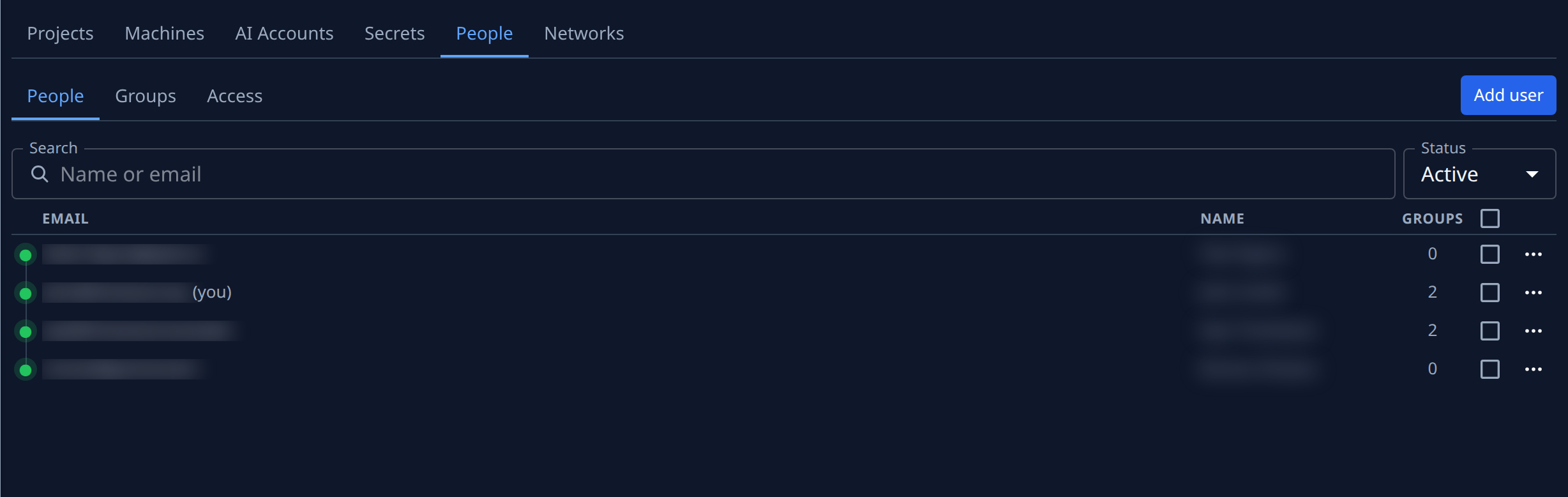
- In the sidebar, select Directory, then the People tab.
- In Search, type part of the person's name or email. The list narrows as you type.
- To narrow it further, open Status and pick Active, Disabled or Invited. Invited shows people who haven't accepted their invitation yet. All shows everyone again.
- To order the list, select Email, Name or Groups above the rows. Select it again to reverse the order. Groups puts the people in the most groups first.
- Hover the number on a row to see which groups the person is in.
- Select the row. Their account opens on Profile, with Access and Check beside it for their roles.
If nothing matches, the page says Nothing matches these filters. Select Clear filters to start again. The filters stay in the page's address, so you can send a teammate a link to the same view, such as everyone still Invited.
A long list shows a page at a time. Use Previous and Next under it, or set Per page to 25, 50 or 100 rows.
Related
- Follow up on an invitation: resend or withdraw the invitations you find under Invited.
- Check what someone can access: see every role the person holds.
- See when someone last used Jaah: find accounts nobody uses.
- People: every column and control on the list.