Give a group access for a limited time
An agency team helps on one project for a quarter, or a squad borrows a model account for a launch. Put those people in a group and give the group a role with an end date. Everyone in it loses that access on the same day, and nobody has to remember to take it away.
Who can do this: requires the org admin role (Org Owners and Admins). Without it, the group's Bindings tab is read-only and has no Grant access.
An end date can be set on a role on a Project or an Account (a model account). A role on the whole Organization never expires, so the dialog offers no Expires for it. The group must exist first; see Create a group.
Grant the role with an end date
- In the sidebar, select Directory, then the People tab, then Groups.
- Select the group's row. It opens beside the list.
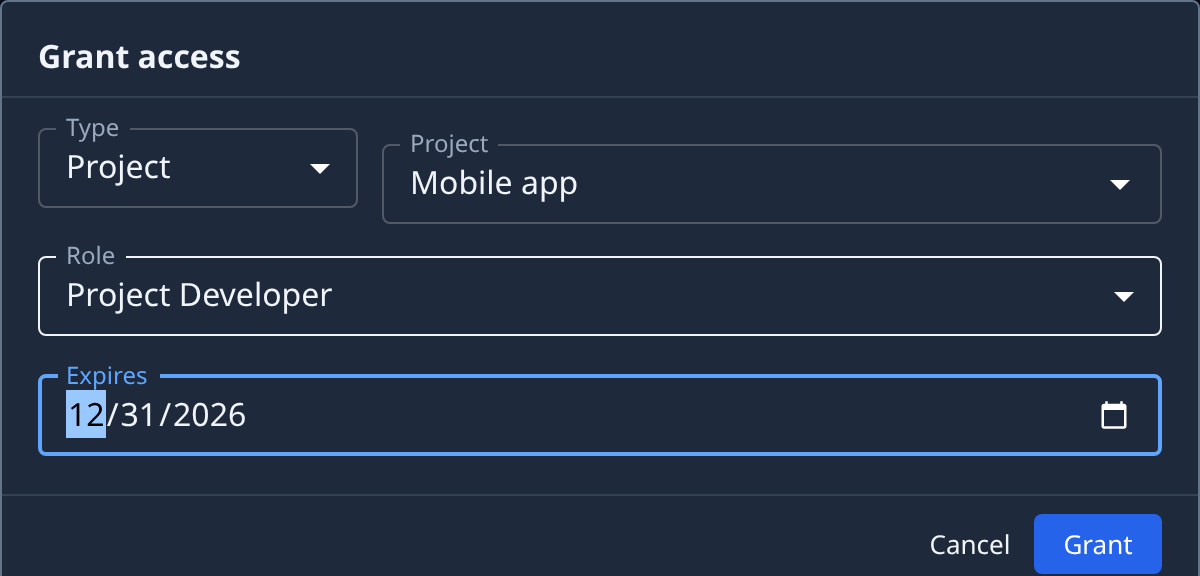
- Select the Bindings tab, then Grant access. The Grant access dialog opens.
- Set Type to Project or Account, then pick the project or the model account in the list beside it.
- Pick the Role, for example Project Developer.
- In Expires, pick the last day the group should have access. The access ends after that day. Left empty, it reads Never.
- Select Grant.
- Check the new row on the Bindings tab: Scope names the project or account, and Expires shows the date. Hover the date to see the exact time it ends.
Every member of the group now holds the role, and so does anyone you add to the group before the date.
Give the group more time
Grant the same role again, as above, on the same project or account, with a later date in Expires. The existing row takes the new date; no second row is added. This also works after the date has passed, and renews the expired row. Leave Expires empty to make the role permanent.
Clear the row once it has expired
After the date has passed, the row stays on the Bindings tab, dimmed, with a ✕ mark and Expired under Expires. It grants nothing. To tidy the list, select ⋯ on the row, then Remove, and confirm.
An end date only ends that one grant. A member who also holds the role directly, through another group or through the organization keeps it. Check one person on their Access tab; see Check what someone can access.
Related
- Give someone access for a limited time: the same, for one person.
- Take a role away from a group: end a group's role now instead of on a date.
- Groups: every column of the Bindings tab.