Duplicate a task
Duplicate opens a new task filled in from an existing one. Use it to run the same work again as a separate task, or to start a similar task without typing its description from scratch. The original task is not changed, and nothing is created until you select Save or Go on the copy.
Who can do this: anyone who can create tasks. Others see no Duplicate.
Duplicate from the board
-
Open Tasks and find the task's row.
-
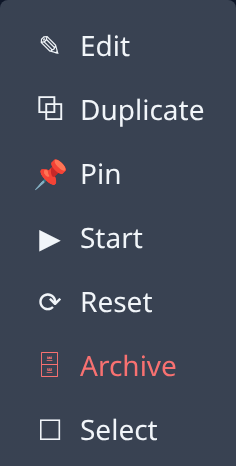
Select ⋯ at the end of the row.
-
Select Duplicate. The new task form opens, filled in from the task.
-
Check what came across. The copy has the original's description, project, size and involvement, and under Advanced its persona, model level and priority. Its attachments and its issue link are copied too.
-
Change what should differ, such as the description or the project.
-
Select Save to keep the copy as a draft, or Go to save it and start it.
The copy gets its own number and a new title, which Jaah writes from its description. To drop the copy instead, select Discard.
Duplicate from the task page
-
Open the task: select its title on the board.
-
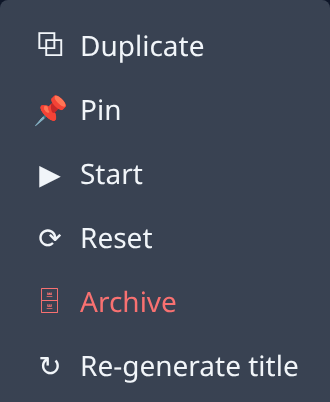
Select ⋯ in the task's header.
-
Select Duplicate, then go on from step 4 above.
What a copy leaves out
- Tags. Tag the copy again; see Label tasks with tags.
- Prerequisites. Add them again under Depends on; see Make a task wait for another task.
- An epic's subtasks. A copied epic starts with subtasks of its own, not the original's.
- Comments, answers and results. These stay with the original.
If an attachment could not be copied, a warning above the form names it. Attach it again with Attach, or go on without it.
On a task from another organization, the menu reads Duplicate as and that organization's name. The copy is created there, and the console switches to act as that organization.
To run the same task again rather than as a new one, select Start on it instead; see Stop, restart or reset a task.
Related
- Start a task: the new task form the copy opens in.
- Write a good task description: what to change in the copied description.
- New task: every field on the form.