Label tasks with tags
Tags sort tasks by what matters to your team, such as the kind of work or the area it touches. Tags come in tag groups: a group like By type holds the tags feature, bug and chore. Once a group is active, you can tag tasks with it and split the task board into one section per tag. Jaah also tags tasks itself, reading each tag's description.
Who can do this: creating tag groups and tags, and activating a group, needs the Org Owner or Org Admin role. Tagging a task needs permission to edit that task. Grouping the board by tags is open to any member who can see the board.
Create a tag group and its tags
-
In the sidebar, select Settings, then the Tasks category. Its Tags section lists your tag groups.

-
Select New group. Fill in Name (the heading the board shows when grouping), Description and Tags per task: One tag or Several tags. Select Create.
-
On the group's page, open the Tags tab and select New tag.
-
Fill in Name and Description. Leave Code blank to make one from the name. Select Create. Repeat from step 3 for each tag, going back to the group through its name at the top.
-
Select Activate on the group's page. Until then the group is a draft and nobody can tag tasks with it. A group with no tags can't be activated.
Your organization may already have draft groups. Check the Tags list before you make a new one; activating an existing group may be all you need.
Tag a task
- Open the task and select its Details tab.
- In Tags, select the Add a tag… box and type part of a tag's code or name.
- Pick the tag. It is saved straight away. In a One tag group, picking a second tag replaces the first.
Re-tag beside Tags lets Jaah choose the tags again from the task's description and result. It asks first when that would replace tags someone set by hand.
Group the board by a tag group
-
Open the task board and select Filter & view.
-
Select Group by, then the tag group's name.
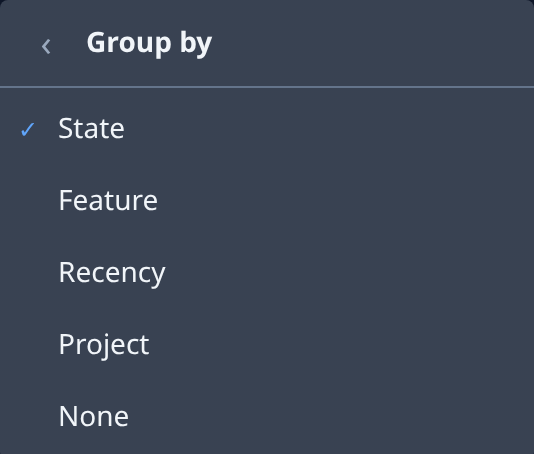
The board now shows one section per tag, in the order the group lists them. Pinned tasks still lead whichever section they land in. Tags don't change how a task runs; its states are in How tasks work. Every field of a tag group and a tag is in the Settings reference.