Choose which columns the board shows
Each row on the task board carries up to seven columns after its title. If you never look at the cost or the tokens, hide those columns so the titles get more room. Your choice is saved to your account, so the board looks the same on every device you sign in on. Other members' boards don't change.
Who can do this: any member who can see the board.
-
In the sidebar, select All projects, or a project, to open the task board.
-
Select Filter & view, the button with the sliders to the left of New Task. The Filter & view panel opens. Its last row, Columns, reads All while every column shows.
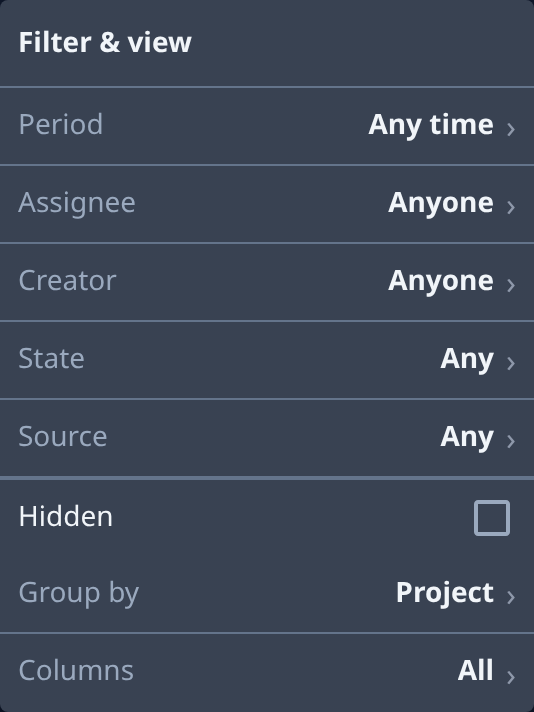
-
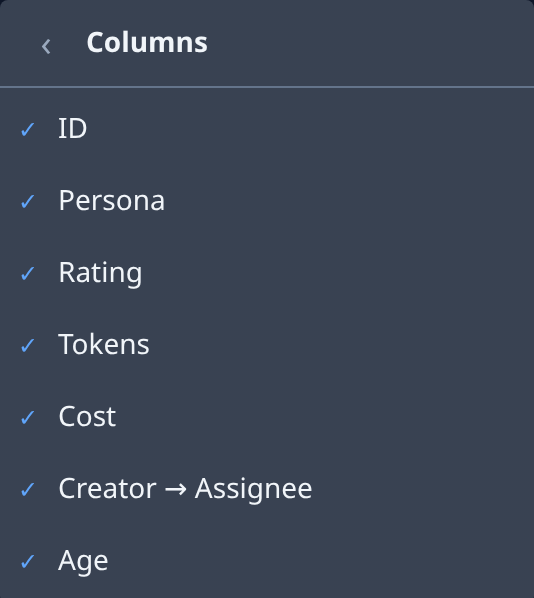
Select Columns. The list shows each column with a tick: ID, Persona, Rating, Tokens, Cost, Creator → Assignee and Age.
-
Select a column you don't need, such as Tokens. Its tick goes and the column leaves every row at once. The panel stays open, so you can hide several in a row.
-
To bring a column back, select it again. Its tick returns.
-
Select ‹ to go back to the panel. Columns now reads how many columns show, such as 5 of 7.
-
Close the panel by selecting outside it.
The title and the status icon always show. A column you keep can still drop out on a narrow screen: Tokens and Cost are left out on narrow screens whatever you choose here.
Related
- Task board: what each column and every other Filter & view setting means.
- Find a task on the board: search and filter the board to one task.
- Label tasks with tags: group the board by your own tags.