Set a task's state by hand
Most tasks move from state to state by themselves, or with Start, Stop, Reset and Complete. When a task is stuck in the wrong state, such as one that finished its work but still reads Running, set its state by hand. Any state can move to any other.
Who can do this: anyone who may run the task, which needs edit access to its project. Others see no State row on the Details tab; the state icon at the top of the page still shows it.
-
Open the task from the task board.
-
Select the Details tab. Summary opens with State as its first row: the current state and Change… beside it.
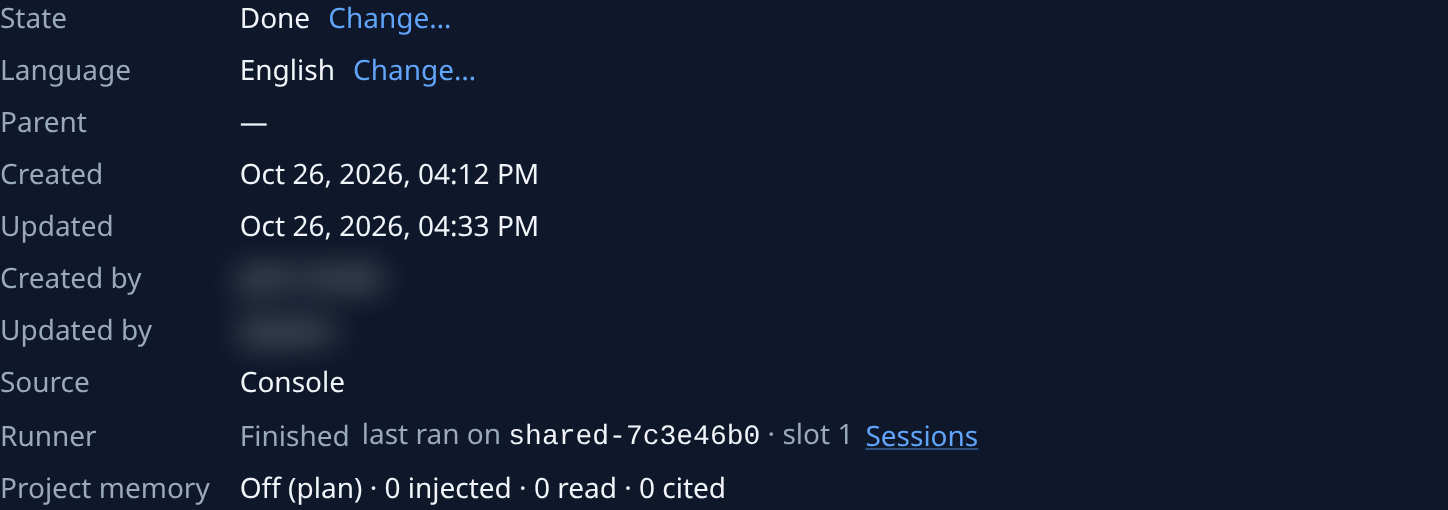
-
Select Change…. A list replaces the state, set to the current one.
-
Pick the state you want: Draft, Queued, Running, Asking, Failed, Paused or Done. Picking the current state does nothing.
-
Read the confirm. Its title names the move, such as Set state to Done?, with the task's number and title, and one line on what the move does:
Move to What it does Draft Ends any runner, frees its slot and clears this attempt's results. On an epic, stops its stage tasks. Queued Queues it for a runner. A live runner is stopped first. On an epic, this starts it. Running, Asking Sets the state only. No runner is started or asked. Paused Ends any live runner; the slot is kept. Failed Ends any live runner and marks it failed. Done Closes it. The outcome is not verified. -
Select the confirm button, such as Set Done, or Cancel to leave the state as it was.
-
Check State and the state icon at the top of the page: both show the new state.
Change… is greyed out while the Task tab has unsaved changes. Save or discard them first. If the move fails, the reason shows under State.
Related
- Stop, restart or reset a task: the everyday moves, from the task's menu.
- How tasks work: what each state means.
- Task page: every row of the Summary tab.