Use the recommended runner for a task
When a project's routing mode is Recommend, a new task shows a Recommended box: the runner Jaah would pick for this task, and why. Take the pick with one click, or ignore it and choose your own. Jaah records which you did.
Who can do this: anyone who can create tasks in the project.
Plan: needs Intelligent routing on your plan. Your organization's Maximum mode must be Recommend or higher, and the project's Routing mode must be Recommend. See Set a project's routing mode.
The box is shown only for a Coder task. Other personas get no recommendation.
-
Check the project's mode: in the sidebar, select Directory, then Projects, then the project. On General, select Advanced and read Mode under Routing. It should read Recommend.
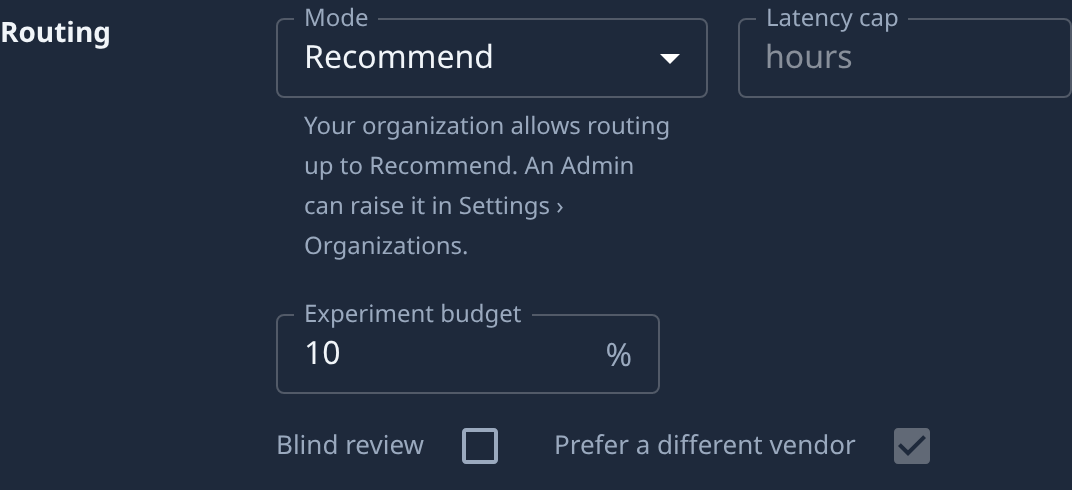
-
On the board, select New Task and pick the project.
-
Write the description. Leave Persona under Advanced on Coder.
-
Stop typing for a moment. The Recommended box appears above Advanced, and updates as the description changes.
-
Read the box:
- Runner: the engine it would run on.
- Tier and Model: the model level and model, when the pick names them.
- Review: how the change would be reviewed.
- The line under them says why this pick. Exploring marks a pick Jaah is trying out.
-
To take the pick, select Use this. Agent under Advanced now holds it, and the box reads Accepted. To choose for yourself, set Agent under Advanced instead. Changing it after Use this brings the button back.
-
Select Go to start the task, or save it as a draft.
-
Open the task's Task tab later. The box reads Accepted if the task kept the pick, or Overridden if it was saved with another runner.
If the box never appears, the project's mode is not Recommend, the persona is not Coder, or your plan leaves out Intelligent routing.
To see what a task finally ran on, open its Routing tab: see Choose the agent and account a task runs on.
Related
- Choose the agent and account a task runs on: pin an agent, account, model level or node by hand.
- Set a project's routing mode: Off, Recommend or Auto for one project.
- Limit what intelligent routing can pick: the organization's Maximum mode and the runners and tiers routing may pick.
- New task › Recommended: the box in the console reference.