Show a draft to a teammate
A draft is listed on the board of the person who created it and the person it's assigned to. To ask someone else to look at a draft before you start it, mention them in a comment on it. The draft then shows on their board too, beside their own drafts, without handing the task over to them.
A draft is also listed to anyone who has commented on it, so a teammate who replies keeps seeing it.
Who can do this: anyone who can comment on the draft. The person you mention must be able to see the project: someone outside it doesn't get the draft on their board.
-
Open the draft from the board.
-
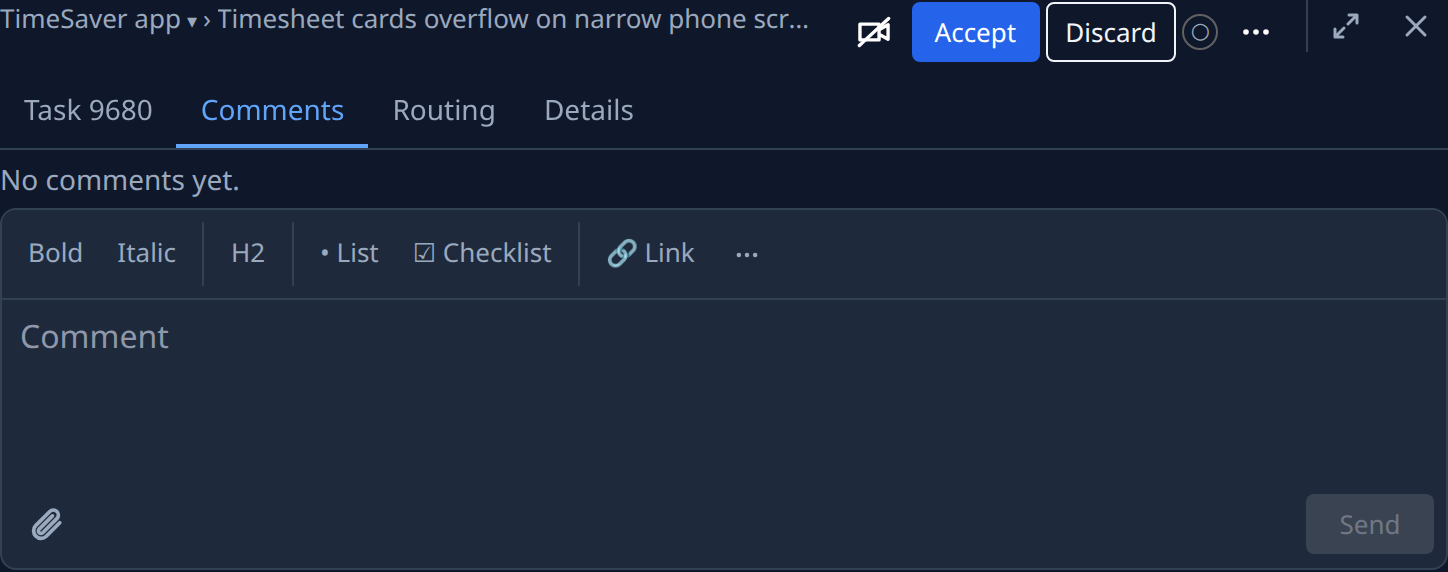
Select the Comments tab.
-
Select the Comment box and write what you want them to look at.
-
Type
@and the start of their name, then pick them from the list. -
Select Send. They are notified, and the draft now shows under Draft on their board.
-
To take it off their board again, select Edit comment (✎) under your comment, delete the mention and select Save. Deleting the whole comment does the same, unless they have commented on the draft themselves.
Putting the mention back in later lists the draft to them again, without a second notification. Anyone who has the draft's link can open it either way; the mention only decides whose board lists it. To hand the work over instead, see Reassign a task.
Related
- Comment on a task: post, edit and delete comments, and react to them.
- See everyone's drafts: how an Org Owner or Admin shows every member's drafts.
- How tasks work: what a draft is, and the other states.