Answer a task's questions with the keyboard
A task that asks several questions shows them one page at a time on its Q&A tab. You can go through every page from the keyboard: the arrow keys pick, Enter moves on, and the last Enter sends.
Who can do this: anyone who can run the task. Someone who can only view it sees the questions without the keys.
-
Open the task that asks. It opens on the Q&A tab, with 1 of N above the first question.
-
Press the Down arrow to pick the first answer, and again to move to the next one. The Up arrow goes back; with nothing picked, it picks the last answer. The keys work anywhere on the questions, not only once an answer has focus.
-
An answer picked with an arrow key stays picked: the page does not move on by itself, as it does after a click. Press Enter to go to the next question. Enter does what Next does.
-
On a question that takes several answers, the arrow keys move between the tick boxes without ticking them. Press Space to tick or untick the one you're on, then Enter to go on.
-
To add a note, select the Note box and type. While you're in it, the arrows and Enter type as usual; Enter starts a new line. Press Ctrl+Enter (⌘+Enter on a Mac) to go on from inside the note.
-
On the last question, Enter does what Send does: every answer goes to the runner together.
Keys pressed with Shift, Alt, Ctrl or ⌘ (other than Ctrl+Enter) are left alone. After you click somewhere outside the questions, such as the task list beside them, the keys belong to that part of the page again; click on the questions to take them back. To go back a page, use Back.
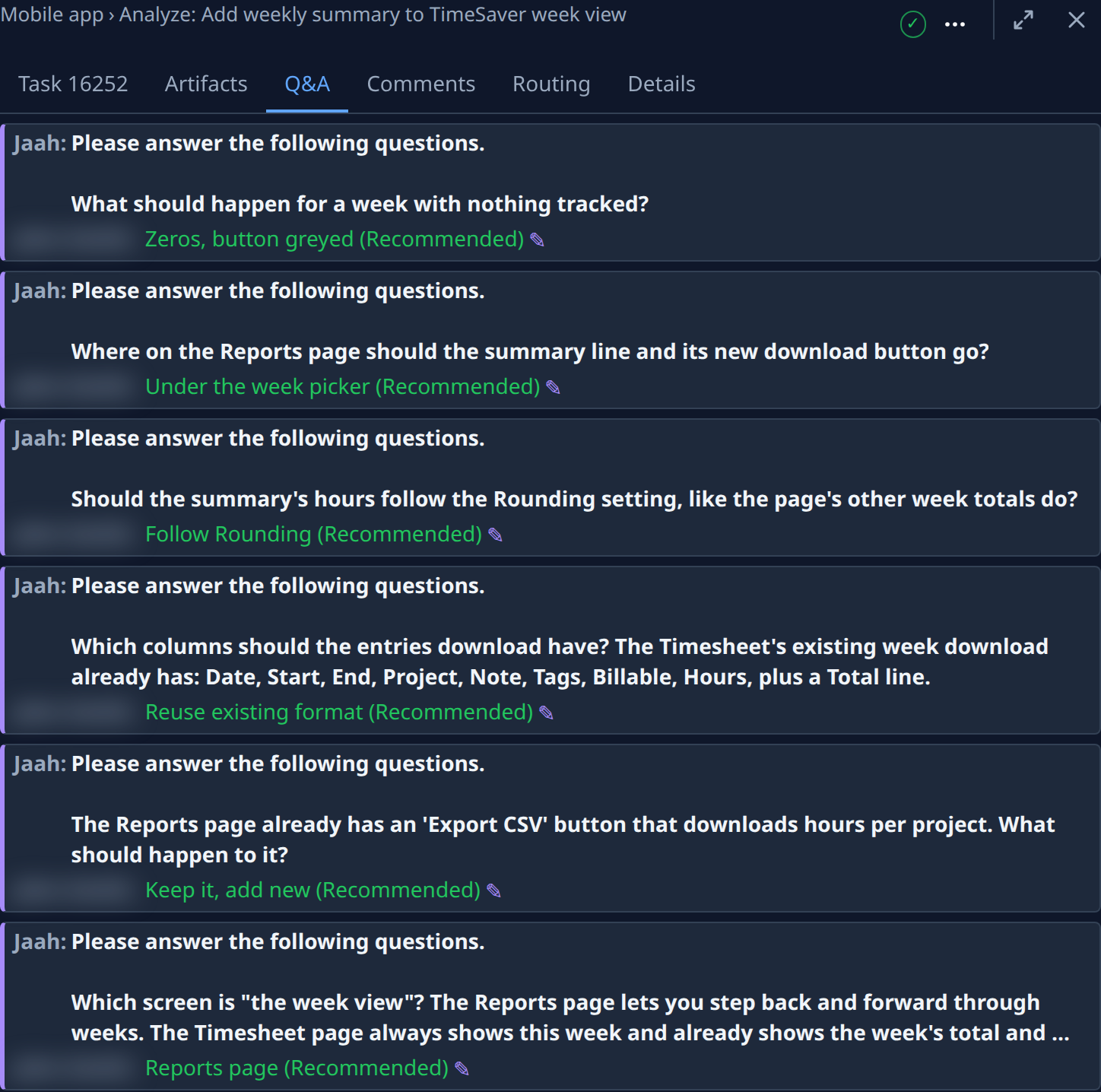
No task in the organization the capture was taken in was asking, so the capture shows a task whose questions are already answered.
Related
- Answer a task's question — every way to answer, attach files and skip a question.
- Change an answer you gave a task — reopen an answer you already sent.
- Task page — everything on the Q&A tab.