Rename a task
Jaah gives each task a title from its description. When the description changed a lot, or the title doesn't say what the task is about, give it a better one. Type it yourself, or ask Jaah to write a new one from the description as it is now.
Who can do this: anyone who can change the task. For others the title reads only, and the menu has no Re-generate title.
Type a new title
-
Open the task from the task board. Its title is at the top of the page, after its project and feature.
-
Select the title. It turns into a box holding the whole title.

-
Type the new title.
-
Press Enter, or click anywhere outside the box. Press Escape instead to keep the old title. Clearing the whole box also keeps the old title.
-
The new title is saved with the task's other changes within a few seconds. To save it at once, open the Task tab and select Save; you return to the board.
-
Check the task's row on the board: it shows the new title.
Let Jaah write a new title
-
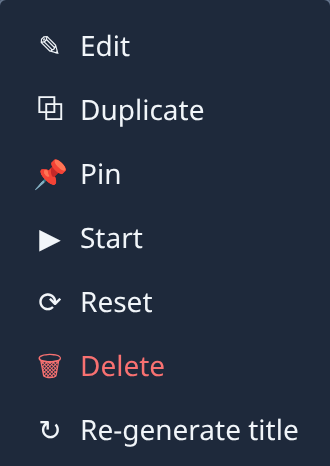
Open the task and select ⋯ at the top right of its page.
-
Select Re-generate title. Jaah writes a title from the task's current description and replaces the old one. There is no confirm.
-
Read the new title at the top of the page. If you don't like it, type your own as above.
Re-generate title is on the task's own page only, not in a row's menu on the board. If it fails, the page says Could not re-generate the title with the reason.
Related
- Edit a task: change the description and settings, then save or start it.
- Write a good task description: a clear description gives a clear title.
- Task page: every item in the task's menu.