Copy a task's link
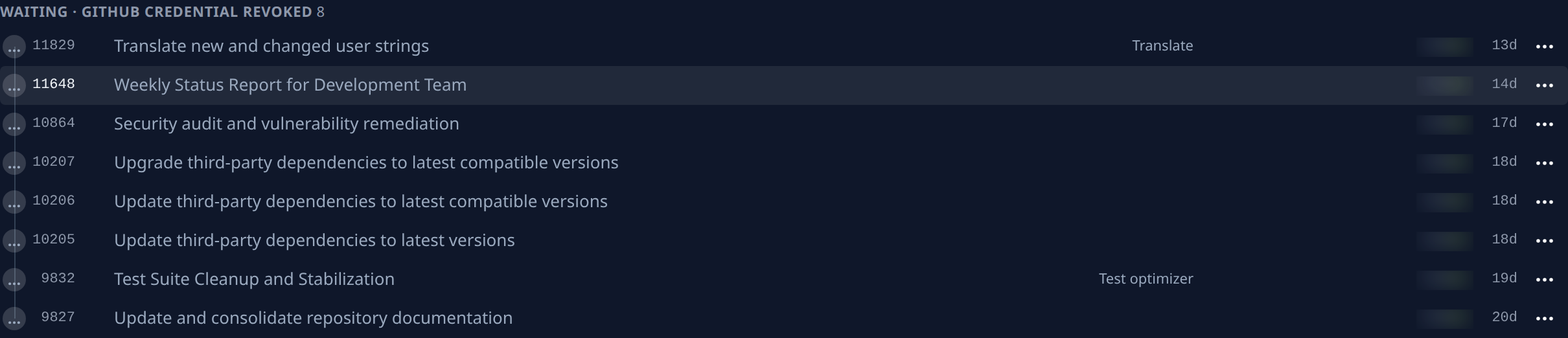
Every row on the task board shows the task's number after its status icon. Select the number and the task's full link goes to your clipboard, ready to paste where you talk about the task. Anyone who opens the link and may see the task lands on its page.
Who can do this: any member who can see the board. It works on every row, an epic's included, whatever the task's state.
Copy the link
-
In the sidebar, select All projects to open the task board, or select a project.
-
Find the task's row. Use Search tasks if it is far down the board.
-
Select the number after the status icon, such as 11648. Select the number, not the title: the title opens the task.
-
Watch the number. It pops and turns green for a moment: the link is copied. If it turns red, your browser refused the clipboard; allow clipboard access for the console and try again.
-
Paste the link where you need it, such as a chat message, a ticket or another task's description.
When there is no number
- The ID column may be off. Open Filter & view, then under Columns turn ID back on.
- On a narrow window or a phone the board drops the number to make room. Widen the window, or open the task and copy the address from your browser.
Related
- Find a task on the board: search and filter the board to reach the row.
- Comment on a task: discuss a task with your team.
- Task board: every column of a row.