Check whether a pipeline stage is up
A stage that runs somewhere, such as Dev or Production, can have a web address. Jaah checks that address about once a minute and shows the result as a small dot beside the stage's name in the Pipeline view. Look at it before you release to a stage, or when users report the site is down.
Who can do this: anyone who can see the project's tasks. A stage shows a dot only once it has an address in the project's pipeline settings; see Set up the pipeline.
-
In the sidebar, select Tasks.
-
In the sidebar's Projects tree, select the project.
-
At the top of the page, select Pipeline. The stage strip shows one block per stage. See Switch between the tasks and pipeline views.
-
Look at the dot before a stage's name:
- Green: Healthy. The address answered.
- Red: Down. The address didn't answer as expected.
- Grey ring: Not checked yet. Jaah hasn't checked it, or can't, for example because the address is on a private network.
-
Hover the dot. It says the result, then what the check saw for a stage that is down (such as HTTP 503), where the address comes from (such as from deploy environment or from Argo CD), and when it was checked, for example Healthy · from Argo CD · checked 40s ago.
-
A stage with no dot either doesn't deploy anywhere, or deploys with no address to check. Hover its name: No address means the second. Add the address in the project's pipeline settings to get a dot.
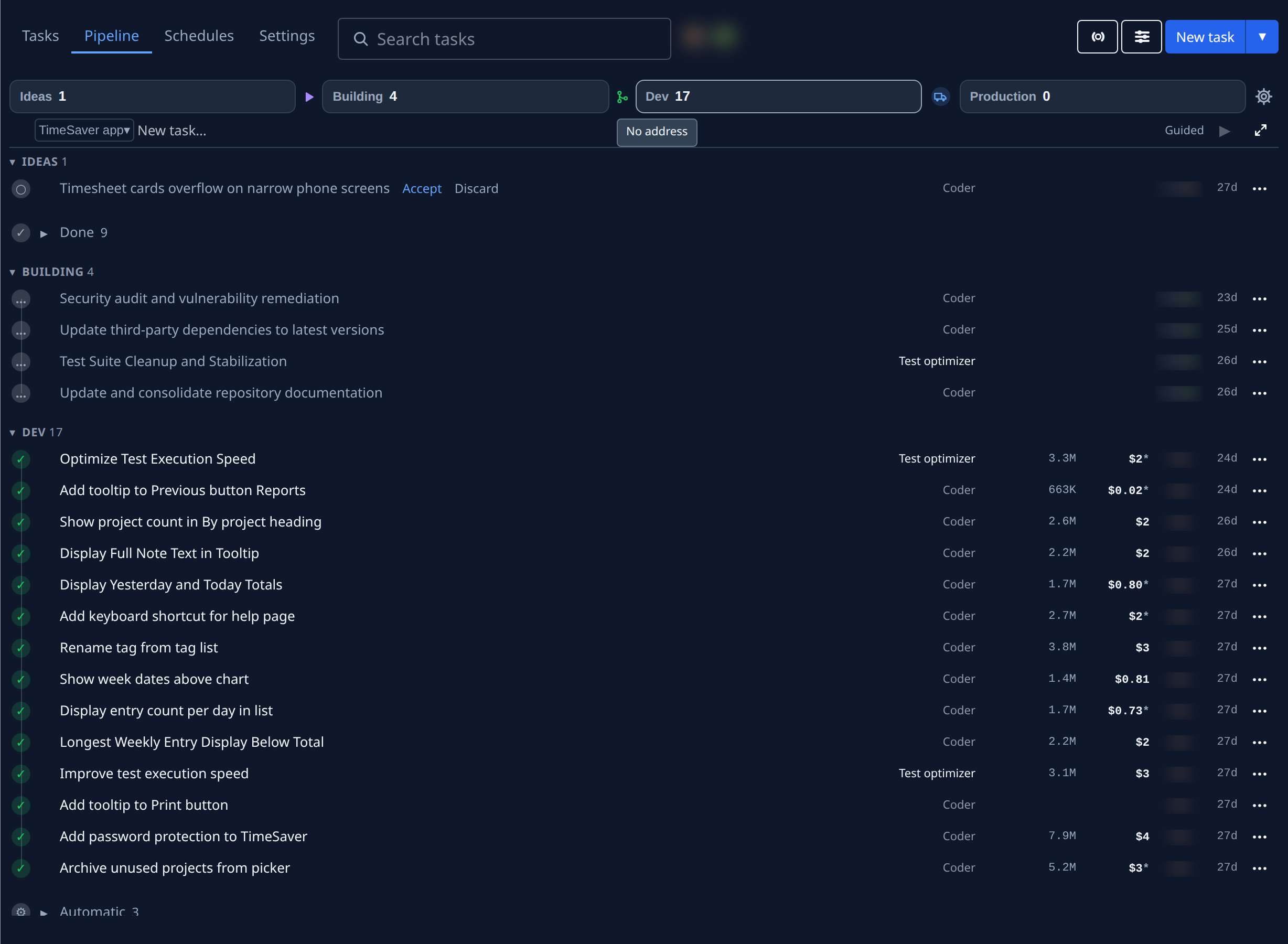
The dot stays current while the page is open: the board reads it again every minute. The same dot shows on each stage's card in the project's pipeline settings.
Related
- Set up the pipeline: the stages, their branches and their addresses.
- Switch between the tasks and pipeline views: open the stage strip.
- Open the app a task's change runs in: reach the running app itself.