Test a staging site with an agent
An agent can work as a manual QA tester: it opens your staging or live site in a browser, clicks through the flows you name, and hands back a report of what works and what is broken, with screenshots. It changes no code. There is no separate feature for manual testing; you set it up as an ordinary task. For automatic checks after every release, see Check production after every release.
Who can do this: anyone who can create tasks on the project.
Before you start
- The site must be reachable from your nodes. A site behind your office network or VPN can't be reached from a node outside it. On a node that runs each task in its own VM, add the site's address to the project's allowed sites: see Let a project's sessions reach another site.
- Store the test logins as secrets, never in the task's description. In the sidebar, select Directory, then Secrets, and select Add secret: see Add a secret. A login that asks for a one-time code can keep its code seed too: see Save a login with its 2FA seed. Attach the secret to the project, or name it in the task: see Tell a task which secret to use.
- Pick a project for it. The task runs in a project. Your app's own project is fine; a project with no repository works too.
Start the test
-
In the sidebar, select the project, then select New task on the board. The new task opens beside the board.
-
In the description box, say:
- the address to test, for example the staging site's URL;
- which secret holds the login, by its name;
- the flows to try, step by step, and what should happen at each step;
- what to hand back: a pass or fail for each flow, with a screenshot of every failure.
More on what makes a description work is in Write a good task description.
-
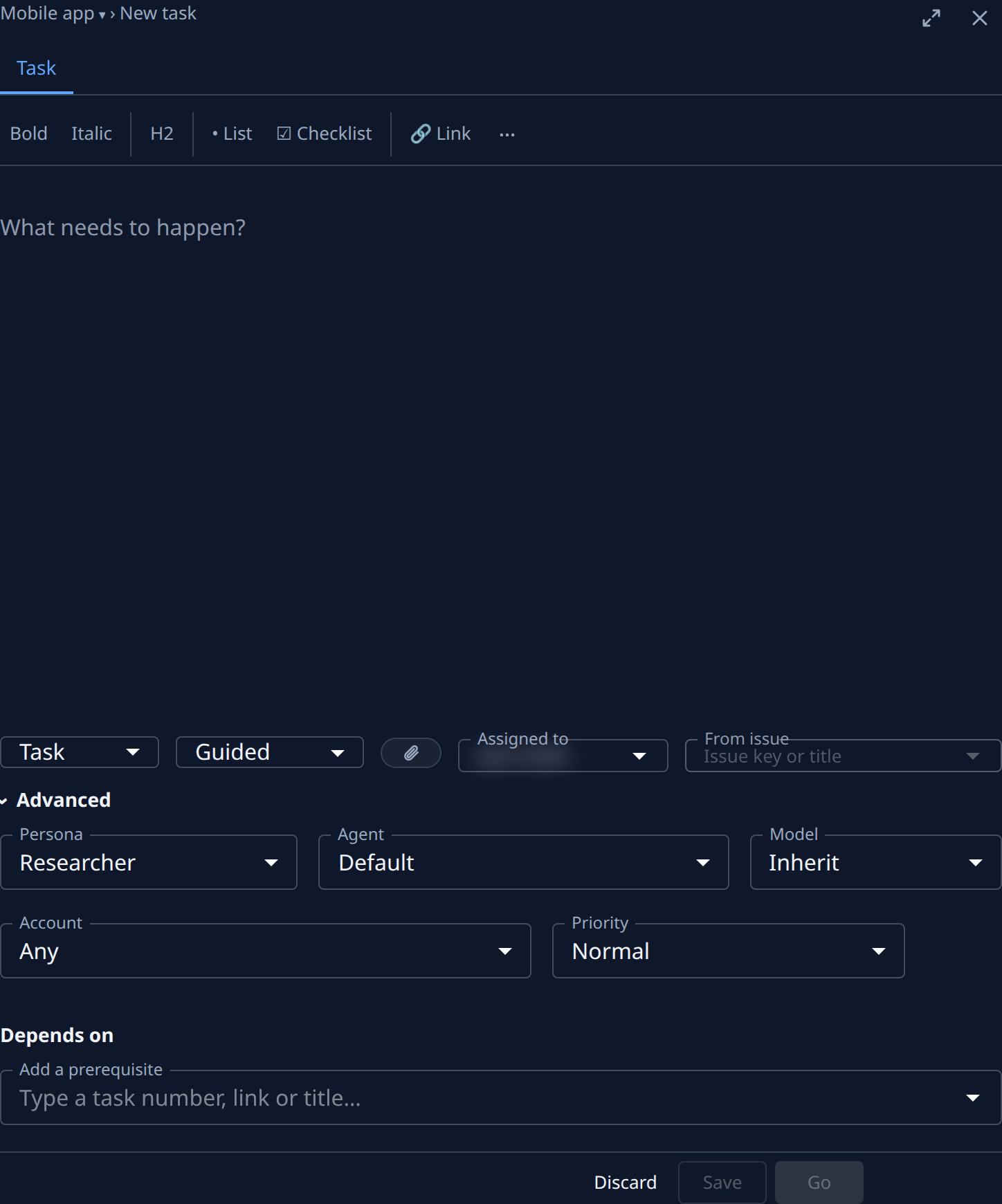
In the second list, choose how involved you want to be: Guided if the agent should ask you before key decisions, such as which account to sign in with, or Unattended to let it test on its own.
-
Select Advanced and set Persona to Researcher, so the result is a report rather than a code change. A Researcher reviews its own findings before it hands them back, so it takes longer than a single pass, and it may also offer a docs change when a finding is worth keeping.
-
Check Assigned to: the person who should get the report. It starts as you.
-
Select Go to save the task and start it.
The agent may ask you questions while it works; answer them on the task. When it finishes, its report is on the task's Artifacts tab: see Read a task's result.
Fix what it finds
Each failure in the report can become its own task: start a Coder task that names the failure, or edit the description of the QA task and run it again after a fix to check it.
Run it again on a schedule
To test the site every night or every week, create an automation that starts the same task on a schedule: see Create an automation.