See who changed a task and when
Every task keeps a record of what happened to it: who created it, who started it, which settings someone changed, and what Jaah did on its own. Read it when a task's priority or assignee moved without you knowing, or when you want to know who started a run.
Who can do this: anyone who can view the task.
-
On the task board, select the task's title. Its page opens beside the board.
-
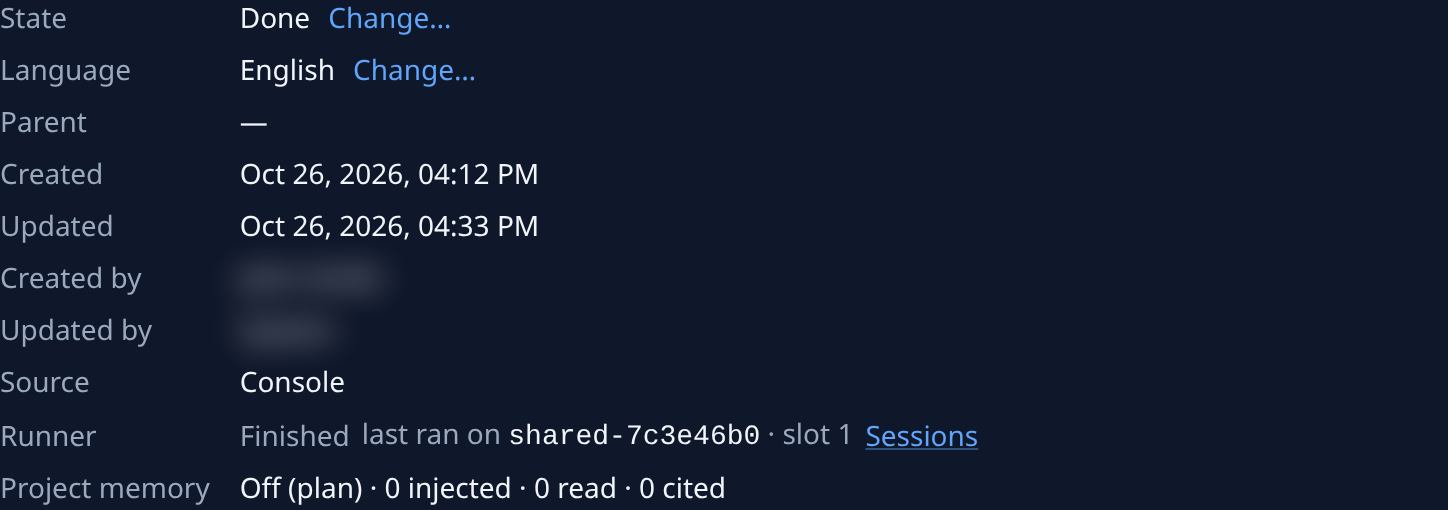
Select the Details tab. It opens on Summary, where Created by and Updated by name the person who created the task and the last person who changed it, beside Created and Updated. System means Jaah itself.
-
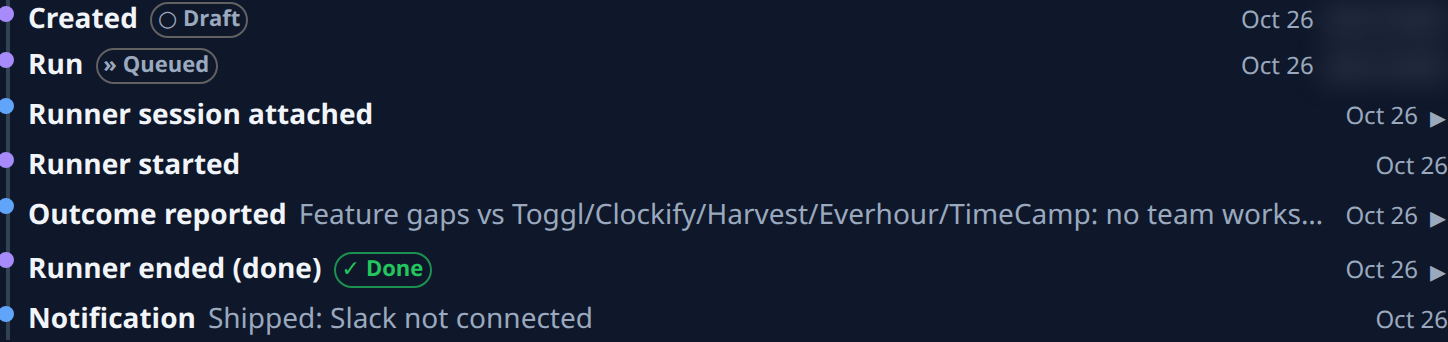
Select Timeline. Every step is listed, oldest first, one line each: what happened, such as Created, Run or Runner started, the state it moved the task to, and when.
-
Read the name after the date. A step a person caused names them; a step Jaah took, such as a runner starting or a notification, names no one. Hover the date for the exact time, or a cut-off name for all of it.
-
Select a step that ends in ▸ to open its details. A step that changed settings lists each one with its old and new value, such as Priority: Normal → High. A changed description says Description changed; select Versions beside it to compare the text. Select the step again to close it.
-
If the task was reset, the steps from before the reset are folded under Earlier attempts with how many there are. Select it to show them, and again to fold them.
A step repeated several times in a row shows once, with ×3 (or however many) after it; hover the count for when it last happened.
Related
- Task page: every tab of a task, Timeline and Versions included.
- See how a task's description changed: compare each version of the description with the next edit.
- Find out why a task failed: read a failed run's steps on the same tab.