Catch up on what changed on the board
Back after a meeting or a day off? Group the task board by when each task last changed, so the newest work sits at the top and older work drops to the end.
Who can do this: any member who can see the board.
-
Open the task board. Select All projects in the sidebar to catch up on everything, or a project to catch up on that one.
-
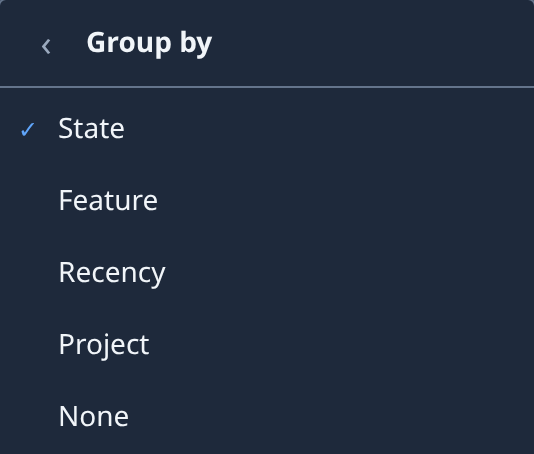
Open Filter & view, the button with the sliders, then select Group by.
-
Select Recency. The menu closes and the board regroups.
-
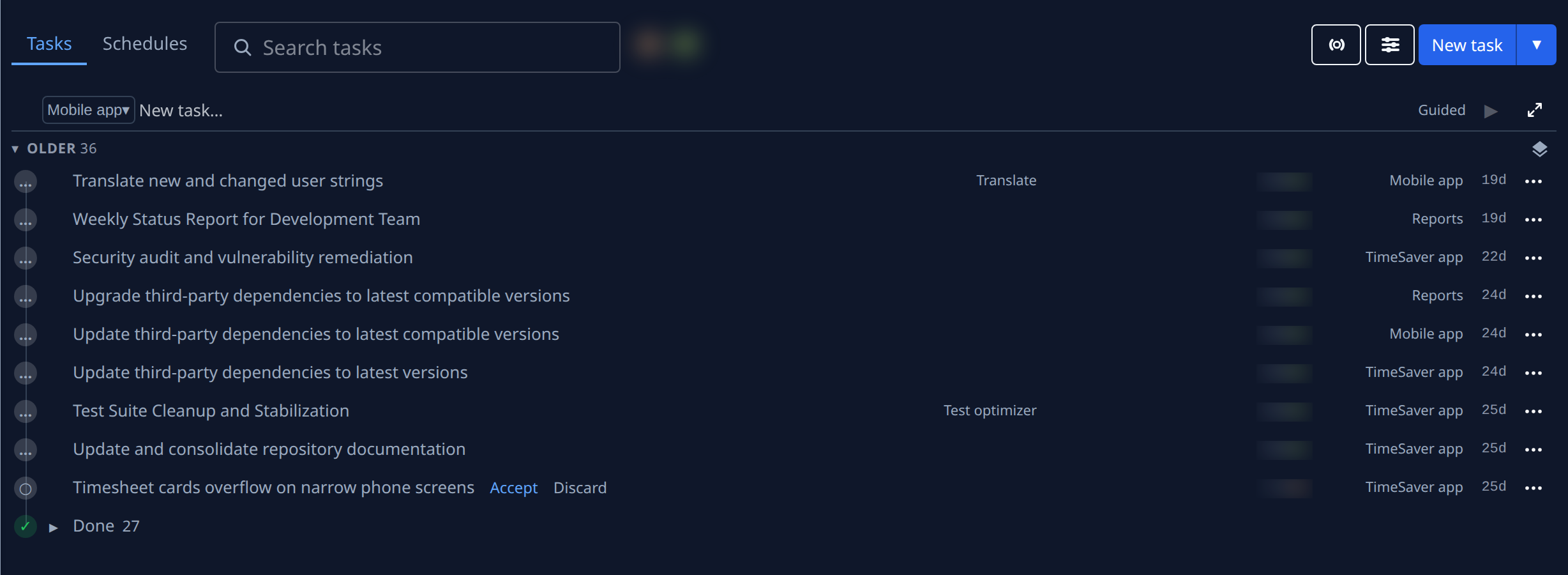
Read the sections from the top: Running now first, then Last hour, Today, This week and Older. Each task sits in the section of when it last changed. A section with no task is left out.
-
Select ▸ on the Done row at the end of a section to list the tasks in it that finished. Select it again to fold them.
-
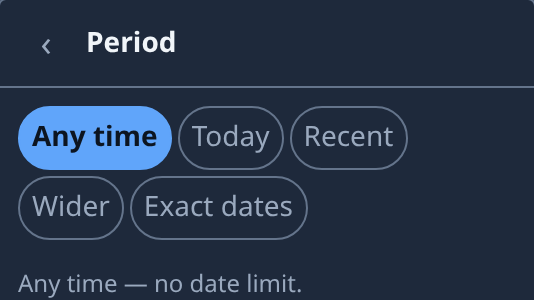
To leave out older work altogether, open Filter & view, select Period, then Today (since midnight), Recent (the past 7 days) or Wider (the past 30 days). A Period: chip appears under the toolbar.
-
Select a task's title to open it beside the board.
-
When you're done, select × on the Period: chip. To go back to sections by state, open Filter & view, select Group by, then State.
With Focus on, queued tasks move to a Queued section at the end, below the work you can act on. See Hide finished work from the board.
Related
- How tasks work: what each state means.
- Find a task on the board: search the board or narrow it by person, state or source.
- Task board: every Group by choice and its sections.