Open the session a task ran in
Every run of a task has its own agent session and spends one AI account. The task's Timeline names both on the row where the run started, so you can open the session to see what the agent did, or check which account paid for it.
Who can do this: anyone who can see the task. The account name is a link only for people allowed to view AI accounts; everyone else sees it as plain text.
Open a run's session
-
Open the task and select the Details tab.
-
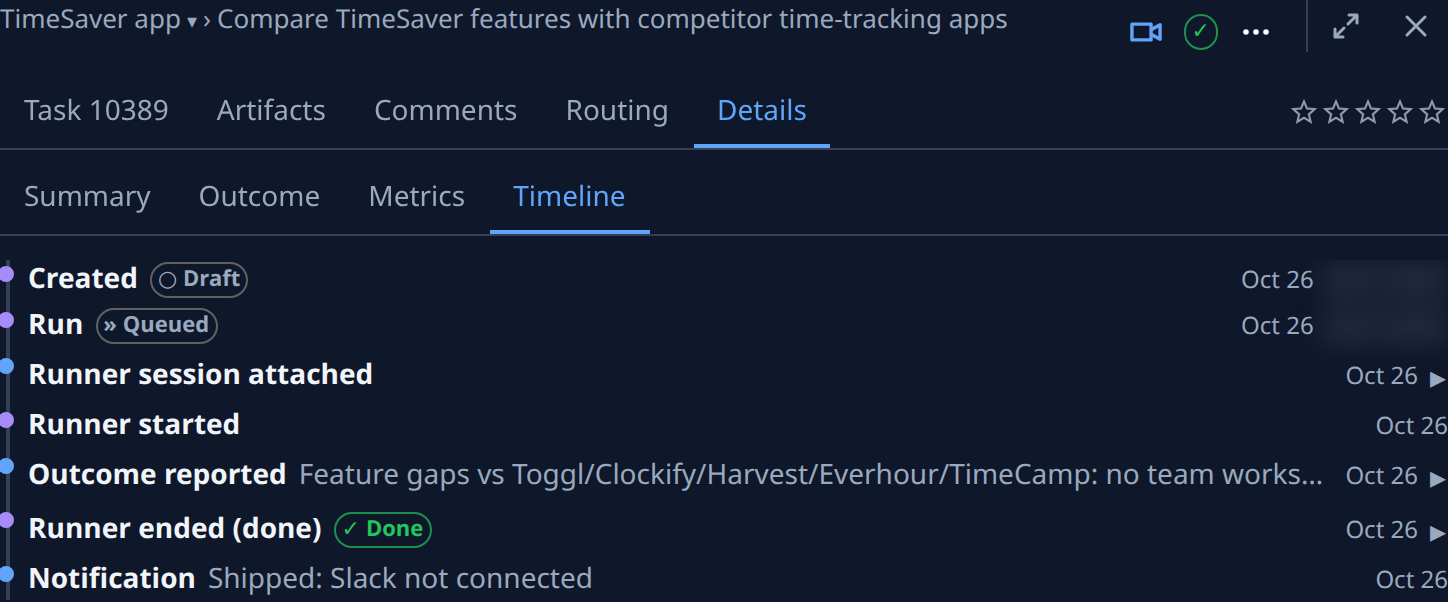
Select Timeline. Each row is one step in the task's life, oldest first.
-
Find the run's Runner started or Runner session attached row. The one with ▸ at its end holds the session. Select the row to open it.
-
Read the line inside: duration: is how long the run worked, and (paused, asking) follows it when the run stopped to ask you something.
-
Select the id after session:. A Claude Code run opens on claude.ai in a new tab, which only the account that ran it can view. Any other run opens its row in Sessions.
-
Read account: for the AI account the run spent. Select the name to open that account, if you are allowed to view accounts.
If a task ran more than once, each run has its own row and its own session. To start from a branch or worktree slot instead of a task, see Find the session behind a branch or slot. What every other Timeline row means is in See who changed a task and when.