Check on your tasks from your phone
You don't need a laptop to see how your work is going. On a phone the task board fits on one screen: the sidebar becomes a button at the top, and a few things that sit beside a task on a wide screen move into its ⋯ menu. This guide walks through a quick check from your phone, from finding your tasks to answering one that waits for you.
Who can do this: any member who can see the board. You see only tasks in projects you can see, and actions such as Start or Console only where you can run the task.
-
Open the console on your phone and select Tasks in the bar along the bottom.
-
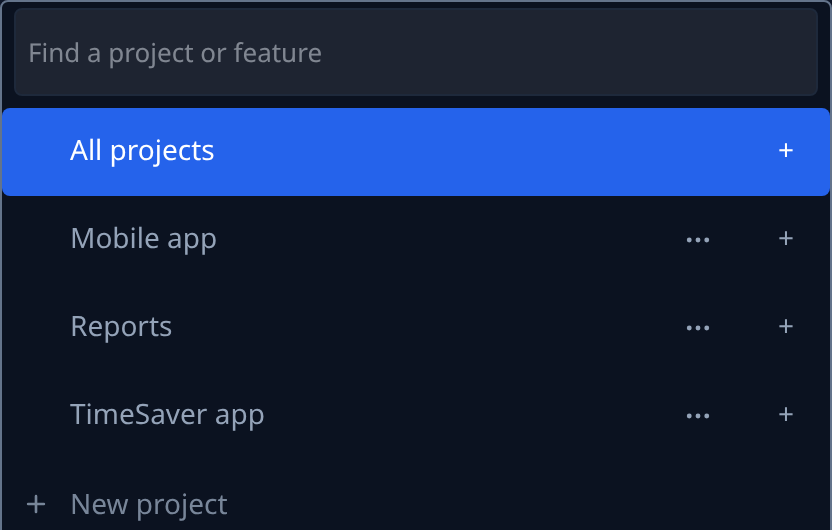
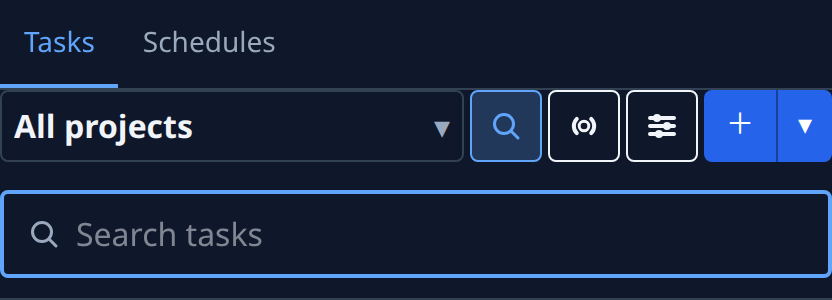
The board's first line starts with what it shows, such as All projects. Select it to pick one project or feature. Type in Find a project or feature to narrow a long list. Picking one closes the list.
-
To look for one task, select the magnifier beside it. Search tasks opens under the line: type the task's number or words from its title. Select the magnifier again to close the box and clear the search.
-
Read the sections from the top: Questions holds the tasks waiting for you, Stopped the ones that failed or paused, then In progress and Queued. To see why a queued task hasn't started, tap its status icon. The reason shows, such as Waiting. 2 prerequisites.
-
Select a task's title to open it. Its state icon sits on its Task tab, before its number, such as ✓ Task 10389 for a done task.
-
A task that is asking opens on its Q&A tab, which is marked while the question waits. Pick or type your answer and send it, as in Answer a task's question.
-
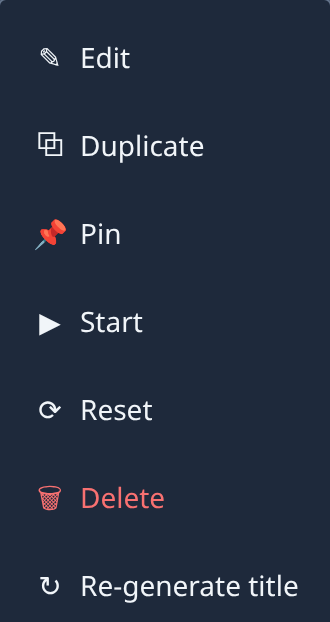
Select ⋯ at the top right of the task for what you can do with it. On a phone the menu also carries what the header shows on a wide screen: on a queued task that can't start yet, its first line says why; on a task that holds a runner, Console opens its live session.
-
To clear finished work, go back to the board and press and hold a done task to tick it. A bar at the bottom of the screen counts what you ticked, such as 1 selected, and offers Delete 1, which asks you to confirm.
Filing a new task works the same way as on a wide screen: select +. On a phone From issue, and Assigned to once it's filled in, sit under Advanced.
Related
- Task board: every part of the board, and how its header looks on a phone.
- Find out why a queued task hasn't started: what each hold reason means and how to clear it.
- Archive or delete many tasks at once: the selection bar in full.
- Find your way around: the bar along the bottom and More.