Find out why a queued task hasn't started
You pressed Go or Start, but the task still sits in Queued. Jaah says why on the board and on the task's page, so you can tell whether to wait or fix something.
Who can do this: any member who can see the task. Fixing what holds it may need someone else, such as the person whose Git sign-in it uses.
-
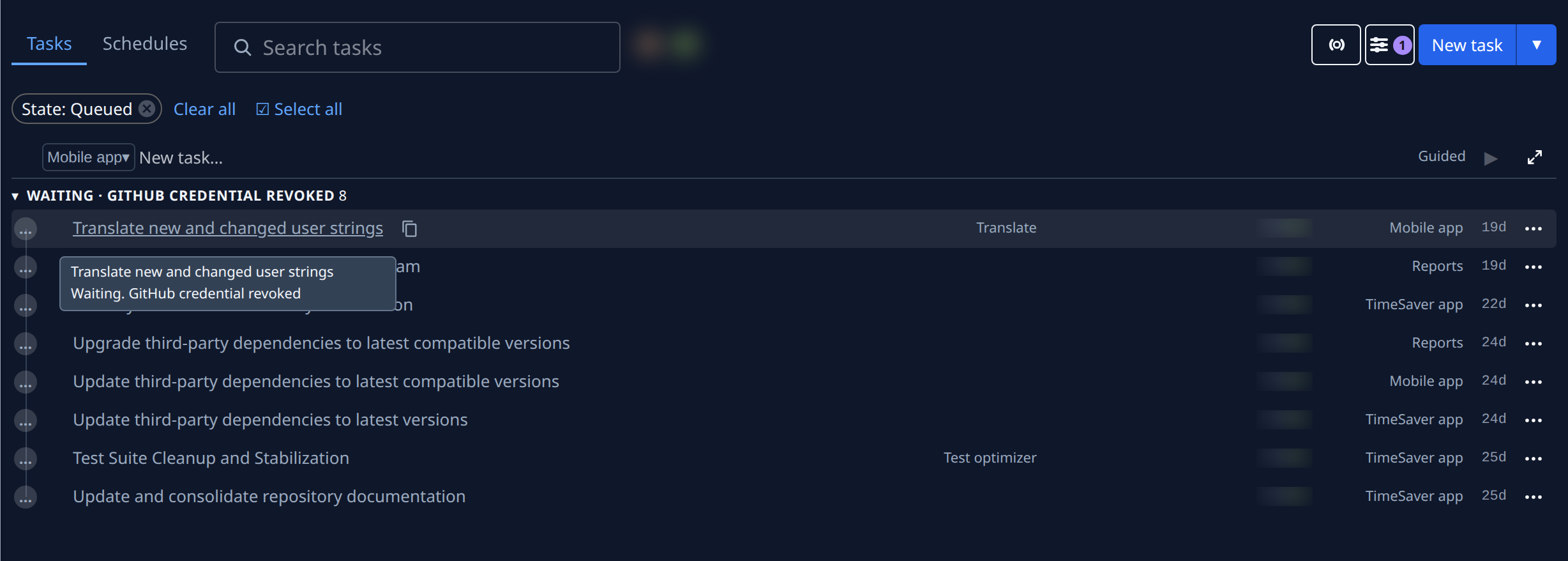
Open the task board. To list queued tasks alone, open Filter & view, select State, then Queued. A State: Queued chip appears under the toolbar.
-
Read the Queued section's heading. When every queued task waits for the same thing, the heading is that reason, such as Waiting · GitHub sign-in revoked for Ann Lee. Otherwise it adds how many are held, such as 2 waiting, beside the count.
-
Hover the task's title or its status icon. The hover names the task, then why it waits, such as Waiting. GitHub sign-in revoked for Ann Lee. On a phone, tap the status icon.
-
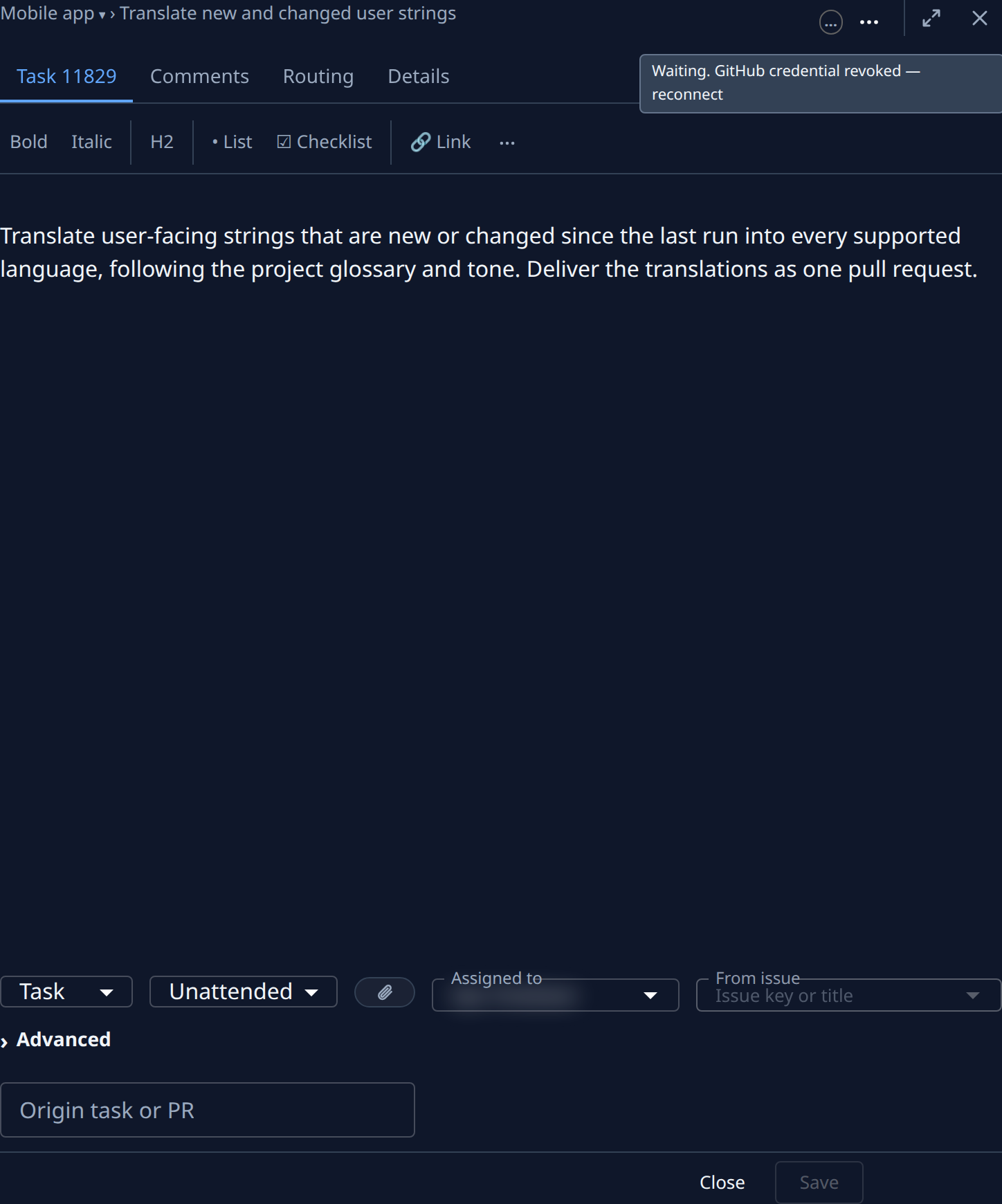
Select the title to open the task's page. Hover the state icon at the top right, beside ⋯, for the same reason and what to do, such as Waiting. GitHub sign-in revoked for Ann Lee — only they can reconnect it. On a phone, the reason is the first line of the ⋯ menu.
-
Clear what holds it:
- A Git sign-in that was revoked: the person whose sign-in the task uses sees Reconnect at the top of the task's page and on its row. It opens their profile's Git page, where they reconnect. Anyone else can't fix this one: ask that person. See Connect your Git account.
- Prerequisites, such as Waiting. 2 prerequisites: the task waits for other tasks to finish. See them under Depends on in Advanced. See Make a task wait for another task.
- A runner limit, such as Waiting. Organization runner limit (1/1): every place to run is in use. Wait, or stop another task. See Start a task when every slot is busy.
- A node that can't take work, such as an offline node or a full disk: the reason says when it resumes. See How nodes work.
-
Leave the task queued. Once the hold clears, it starts by itself; you don't need to press Start again.
If the task is held behind others for no reason you can fix, raise its priority instead: see Move a queued task up the queue.
Related
- How tasks work: what Queued and Waiting mean.
- Task board: the Queued section and its heading.
- Task page: the state icon and Reconnect.