Format an answer and add screenshots
When a task asks you something, the box under its options is the same editor as a task comment. You can format the answer, mention a teammate, and paste a screenshot straight in. The runner gets your words with their formatting and every file you added.
Who can do this: anyone who can answer the task's questions.
-
Open the task that shows Asking. It opens on the Q&A tab with its first open question.
-
Pick an option if one fits. The box below it reads Note (optional): what you type there goes with your pick. A question with no options shows Type your answer… instead, and what you type is the answer.
-
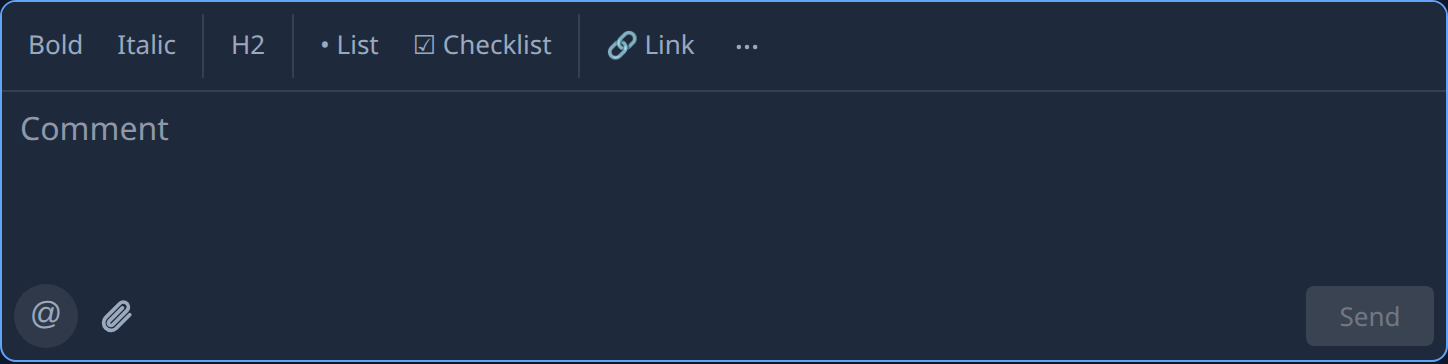
Type in the box, and format with the bar above it: Bold, Italic, H2, • List, ☑ Checklist and 🔗 Link. Select ⋯ for the buttons that don't fit. Enter starts a new line; it does not send.
-
To bring a teammate in, select @ (Mention someone) under the box, or type @, then pick a name from the list. They are notified that you mentioned them, the same way as for a comment.
-
To add a screenshot, paste it into the box, drop it on the box, or select the paperclip (Attach files) and pick files of any kind. A picture shows as a thumbnail, any other file by its name. To take one off, select × on its corner.
-
Wait until every file has uploaded, then select Next, or Send on the last question. While a file is still uploading, or one failed, the buttons wait: remove the failed file first. A file can be the whole answer.
Your answer shows on the Q&A tab with its formatting, and its screenshots as thumbnails under it. Selecting a picture opens it full screen; selecting any other file downloads it.
An answer takes up to 10 files of up to 10 MB each. A file over the limit is not added, and a line under the box names it.
The figure above was taken on a task's Comments tab, because no task was asking a question when it was taken. On the Q&A tab the box has no Send of its own: Next and Send sit under the question.
Related
- Answer a task's question: find a waiting task, pick options and send every answer.
- Format a comment and attach files: the same editor on a task's Comments tab.
- Comment on a task: mention someone in a comment and react to one.
- Task page › Q&A: every part of the Q&A tab.