Complete a task with a one-line outcome
Use Complete when a task's work is done some other way, or is no longer needed but worth keeping as done. It asks for an optional one-line outcome, so whoever looks at the task later reads what happened instead of a bare Done.
Who can do this: anyone who can start and stop the task. Complete is offered on a draft, a queued, running, asking, failed or paused task, never on one that is already done.
-
Find the task on the board, or open its page.
-
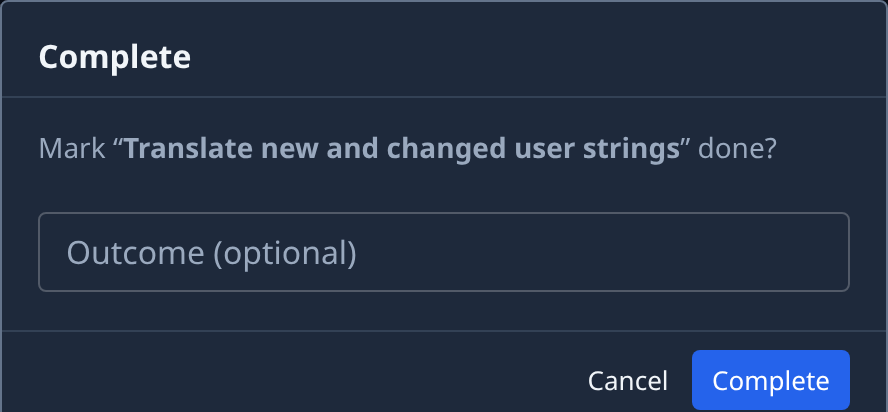
Open the task's ⋯ menu and select Complete. A dialog asks Mark "title" done?
-
Read Outcome (optional). It starts with the runner's own summary when there is one, else your last answer to the task's questions. It is empty when there is neither.
-
Type or change the outcome in one line, up to 200 characters, such as Fixed by hand in the release branch. Leave it empty to complete the task without one.
-
Select Complete. A runner still working on the task is stopped, and the task moves to Done. Select Cancel to leave it as it was.
-
To read the outcome later, hover the task's title or its status icon on the board. On a phone, tap the status icon. On the task's page, Details › Summary shows it under Outcome, marked closed by hand.
To undo it, Reset the task to a draft and start it again: see Stop, restart or reset a task.
Related
- Read a task's result: the outcome, the change and the cost of a finished task.
- Set a task's state by hand: move a stuck task to any state, Done included.
- How tasks work: the states a task goes through.