Hide a task from the board
A task you no longer want in your way, but don't want to delete, can be hidden. A hidden task leaves the board unless the board's Hidden filter is on. Its subtasks hide with it. It still runs, and its link still opens it.
Who can do this: the person who created the task, while they can edit tasks in its project. Only a saved, top-level task can be hidden: the box isn't on a new task or a subtask.
Hide it
-
On the task board, select the task's title. Its page opens beside the board on the Task tab.
-
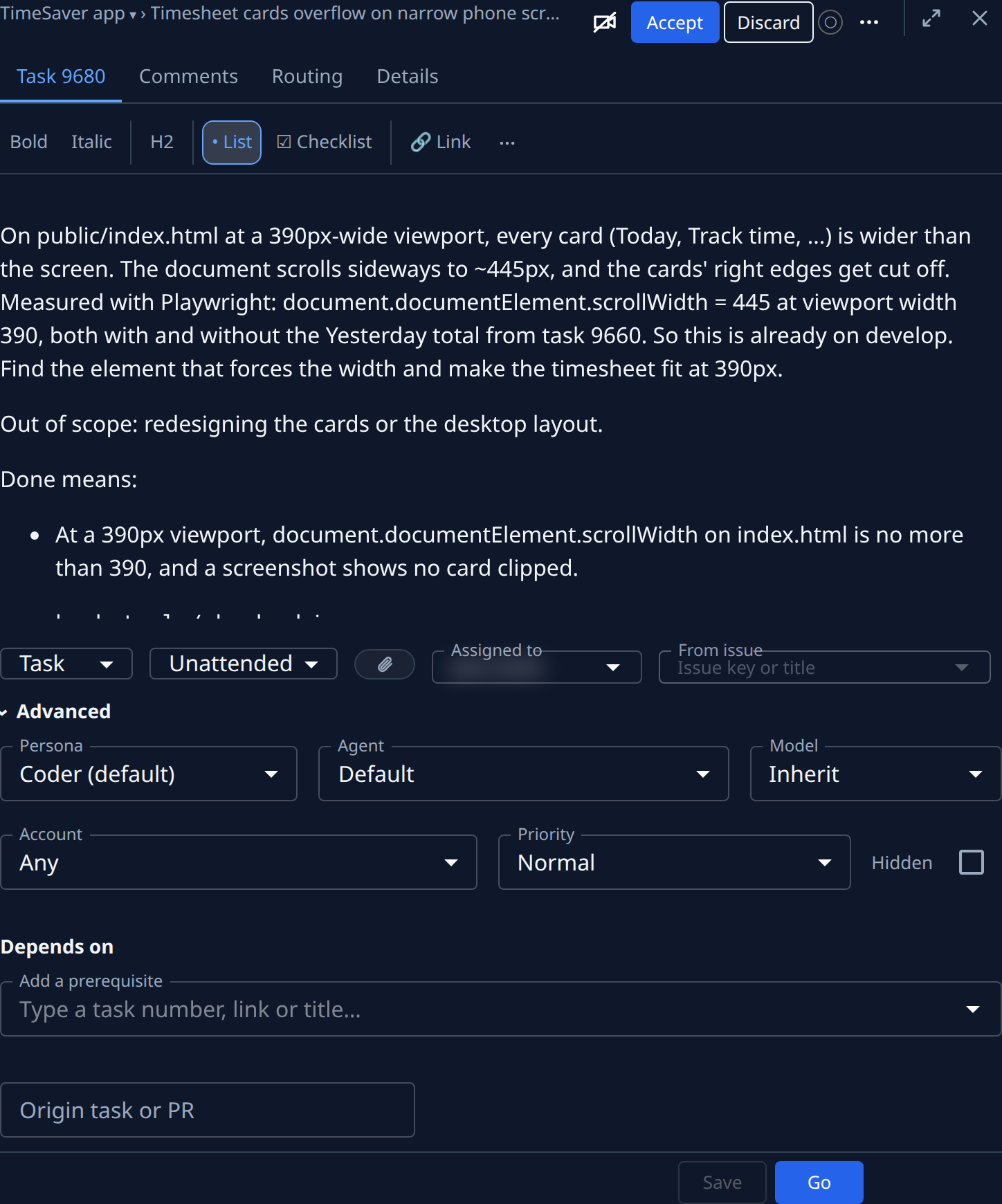
Select Advanced, under the size, involvement and Assigned to fields.
-
Tick Hidden, beside Priority. Hover the label for Left off the board unless its Hidden filter is on.
-
Select Save.
-
Check the board: the task's row is gone. A hidden task that is asking a question still shows until you answer it.
Show it again
- On the board, select Filter & view in the toolbar.
- Tick the box on the Hidden row. Hidden tasks join the board, with system and archived tasks. See See everyone's drafts.
- Select the task's title, then Advanced.
- Untick Hidden and select Save.
- Untick Hidden in Filter & view to go back to the usual board. The task stays on it.
Related
- Edit a task: change a task's description and settings, then save.
- See everyone's drafts: what the board's Hidden filter adds.
- Archive or delete many tasks at once: clear finished work off the board for good.