See which persona each task runs
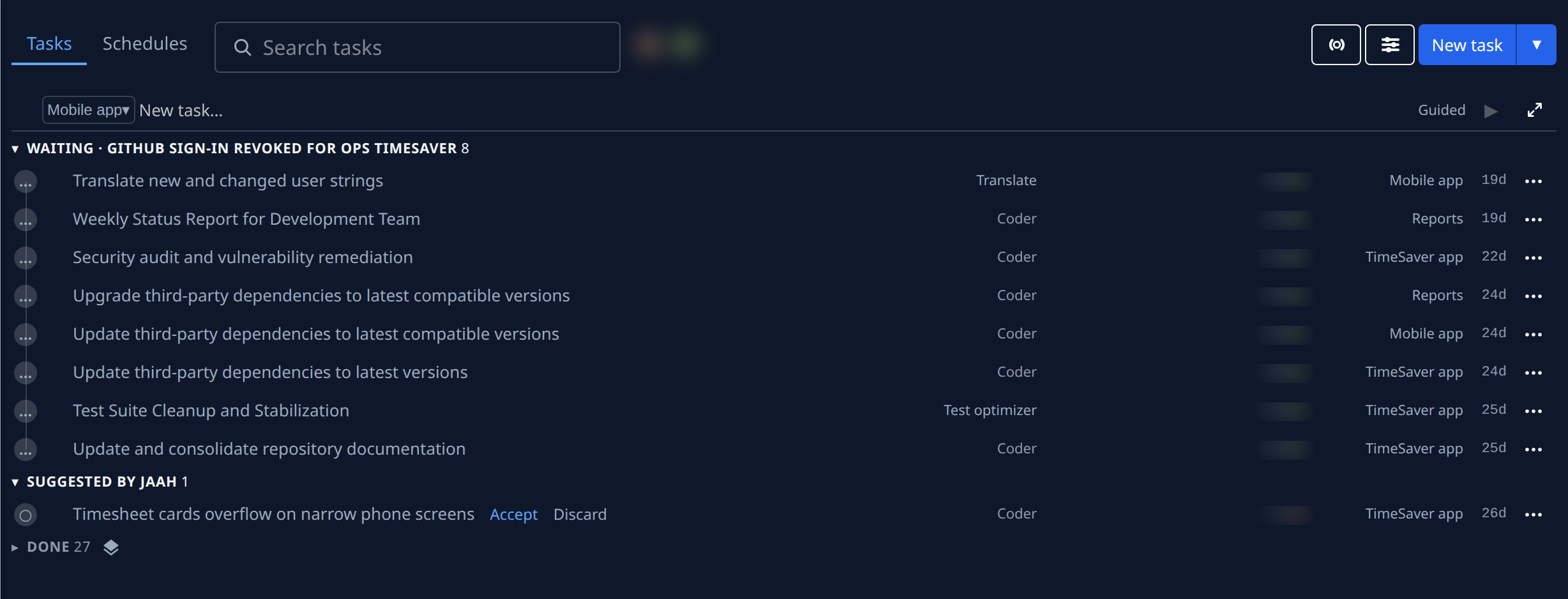
Every task runs as a persona, such as Coder, Researcher or Translate. The task board names it on each row, in the Persona column. Most tasks carry their project's default persona, so that one shows dimmed and any other persona stands out at full strength.
Who can do this: any member who can see the board.
-
In the sidebar, select All projects, or a project, to open the task board.
-
Find the Persona column, the word to the right of each title. Each row names its persona, such as Coder, Translate or Test optimizer.
-
Compare the shades. A dimmed persona is the project's default: the persona a new task in that project starts as. A persona at full strength was picked for that task, so it differs from the default.
-
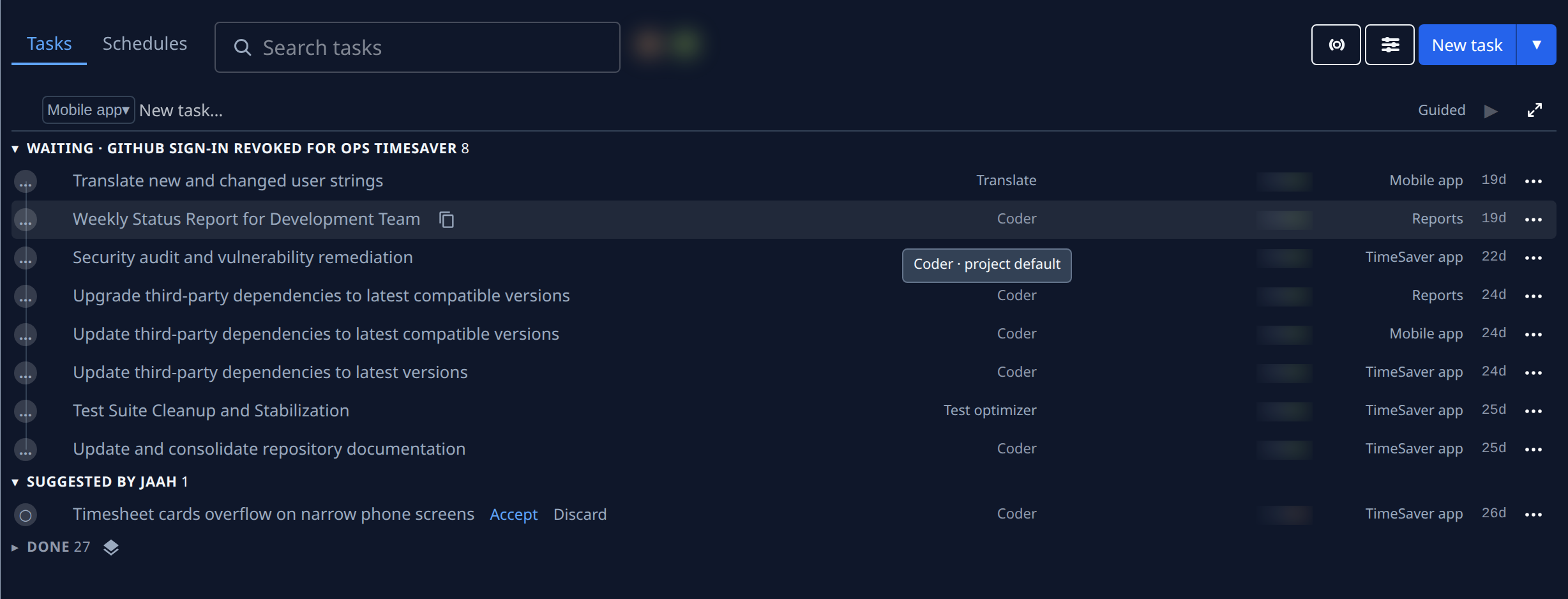
Hover a dimmed persona to confirm. The tip reads the persona and project default, such as Coder · project default.
-
On a board that spans several projects, read the project name at the end of the row. Each row is dimmed against its own project's default, so Translate can be dimmed in one project and full strength in another.
-
To change which persona a project's new tasks start as, set its default persona. See Set a project's default persona. The rows that carry the new default then show dimmed.
When the column shows something else
- An epic's subtasks always show their persona at full strength: each one names the stage it runs.
- An epic reads Epic. In a release, an epic that is not finished yet reads Part; hover it for how many parts the release ships.
- No Persona column at all: it may be hidden, or the board is too narrow. It is the first column to go on a narrow board. To show it again, see Choose which columns the board shows.
Related
- Choose a persona for a task: pick the persona when you start a task.
- How personas and playbooks work: what a persona changes about the work.
- Task board: every column and section of the board.