Find a finished task by searching the board
Finished tasks fold out of the way on the board: under Done, under each group's Done row, under a release, and under its feature and Automatic rows. When you search, every one of those folds opens, so a finished task that matches shows without you opening each fold by hand.
Who can do this: anyone who can see tasks.
-
In the sidebar, select Tasks.
-
Type words from the task's title, description or outcome, or its number, in Search tasks at the top of the board. Typing saves nothing: it only narrows what the board shows.
-
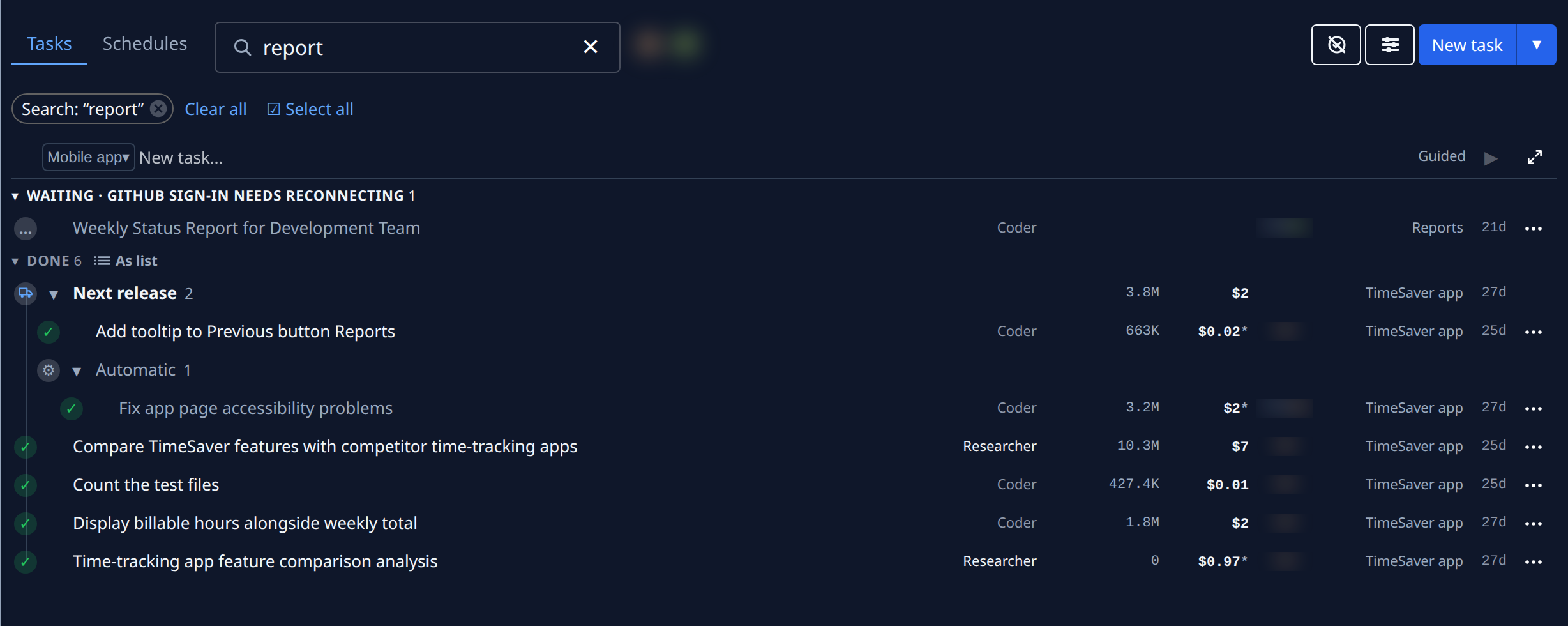
Look under Done. It opens by itself, with each release, its Automatic row and any feature row inside it, so every matching finished task is listed.
-
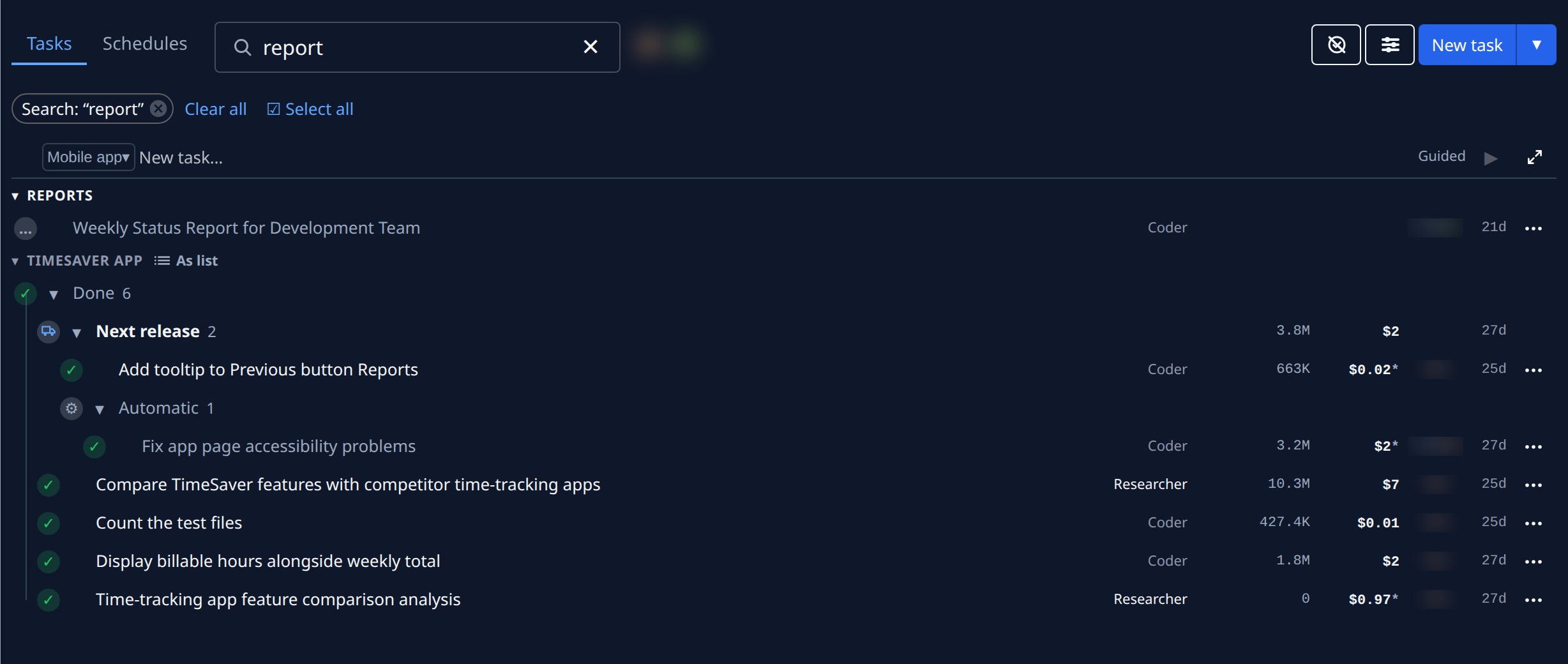
Grouped by Project, Feature or a tag group under Filter & view, each group's Done row opens the same way.
-
To get a fold out of the way, select its ▾. It stays closed while the search text stays the same; type more or change the text and it opens again.
-
Select the task's title to open it.
-
Clear the search with × in the search box or on the Search chip. The folds go back to how you left them before you searched.
The search only opens folds for as long as it holds text. What you open or close while searching is not remembered after you clear it.
Related
- Find a task on the board: search, assignees and Filter & view to narrow the board.
- Fold finished tasks in each group: the Done row at the end of each group.
- Open the tasks automations filed: the Automatic rows inside each list.